
Integrations
The Daloopa MCP server works with any MCP-compatible client. Connect it once and query financial data — income statements, balance sheets, segments, KPIs, management guidance, and SEC filing text — directly from wherever you work.
MCP Server URL: https://mcp.daloopa.com/server/mcp
Claude.ai
Go to Settings > Connectors and click Organization connectors to manage connectors. If you are part of an organization, an admin may need to set up the connector first.
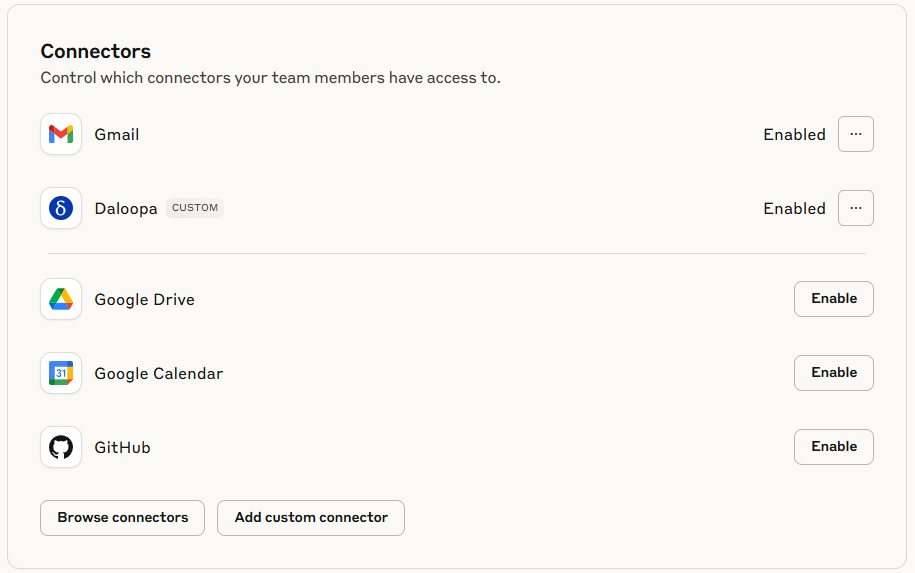
Click Browse connectors, find Daloopa, and click on it.
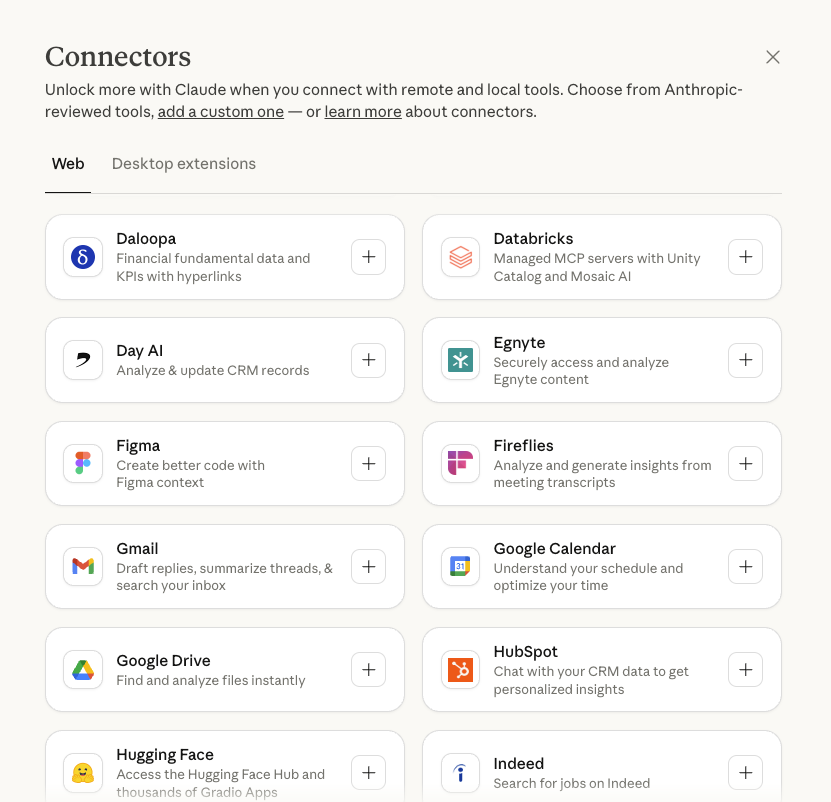
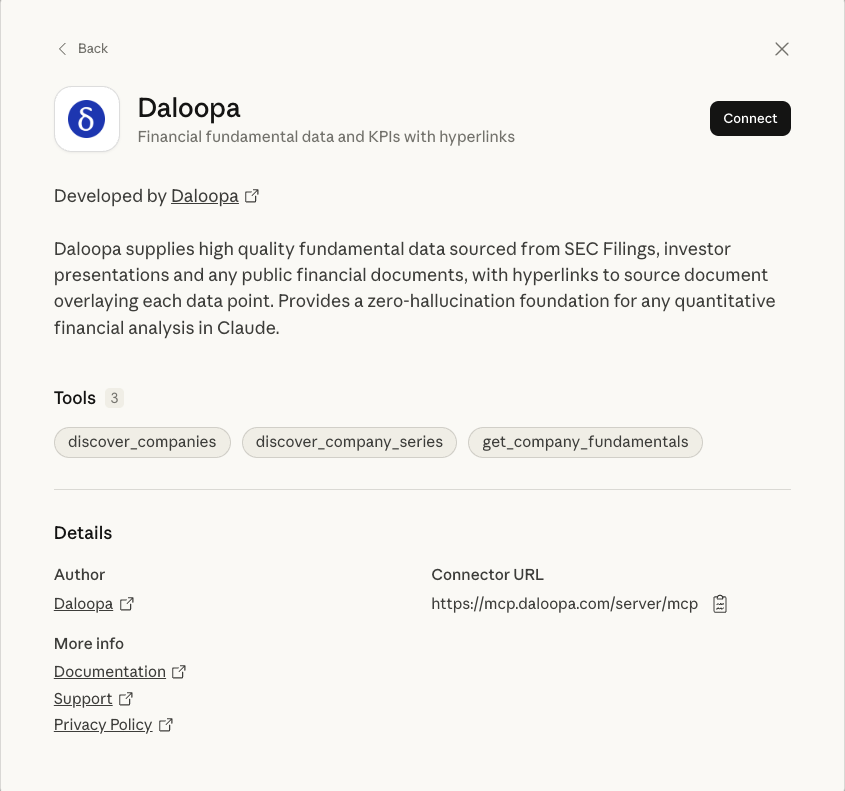
Click Connect.
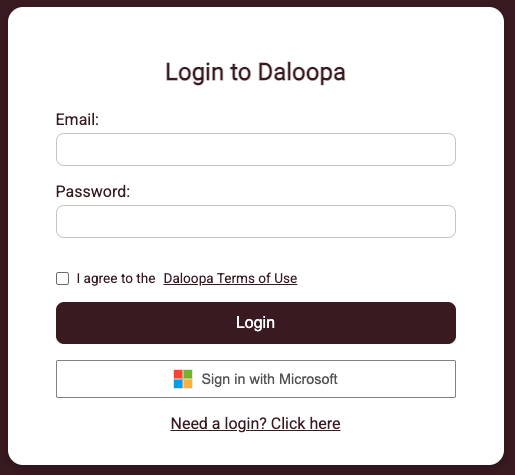
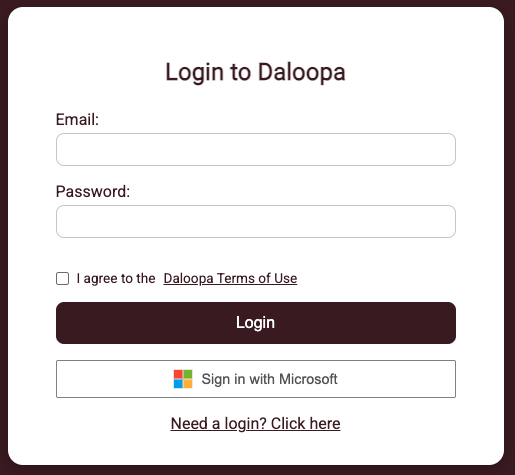
You'll be redirected to the Daloopa MCP Login Page. Enter your Daloopa email and password. On success, you'll be redirected back to Claude with the connection established.
Verify that all Daloopa tools are enabled:
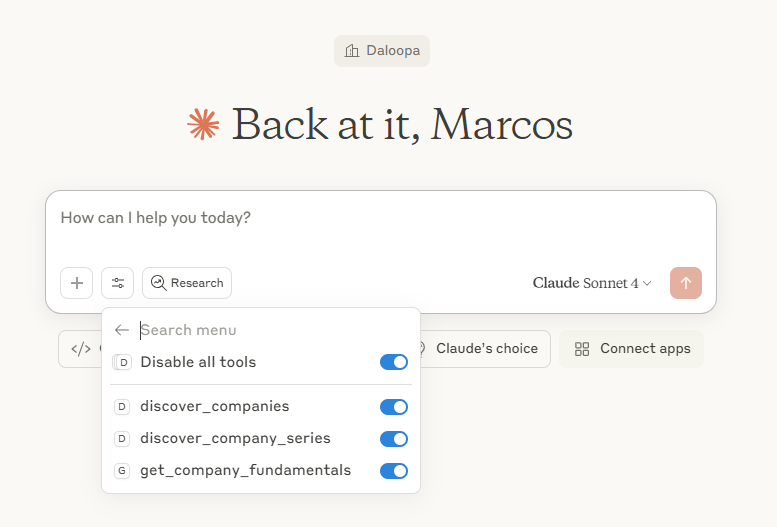
You can also manage your connectors in the custom connectors page
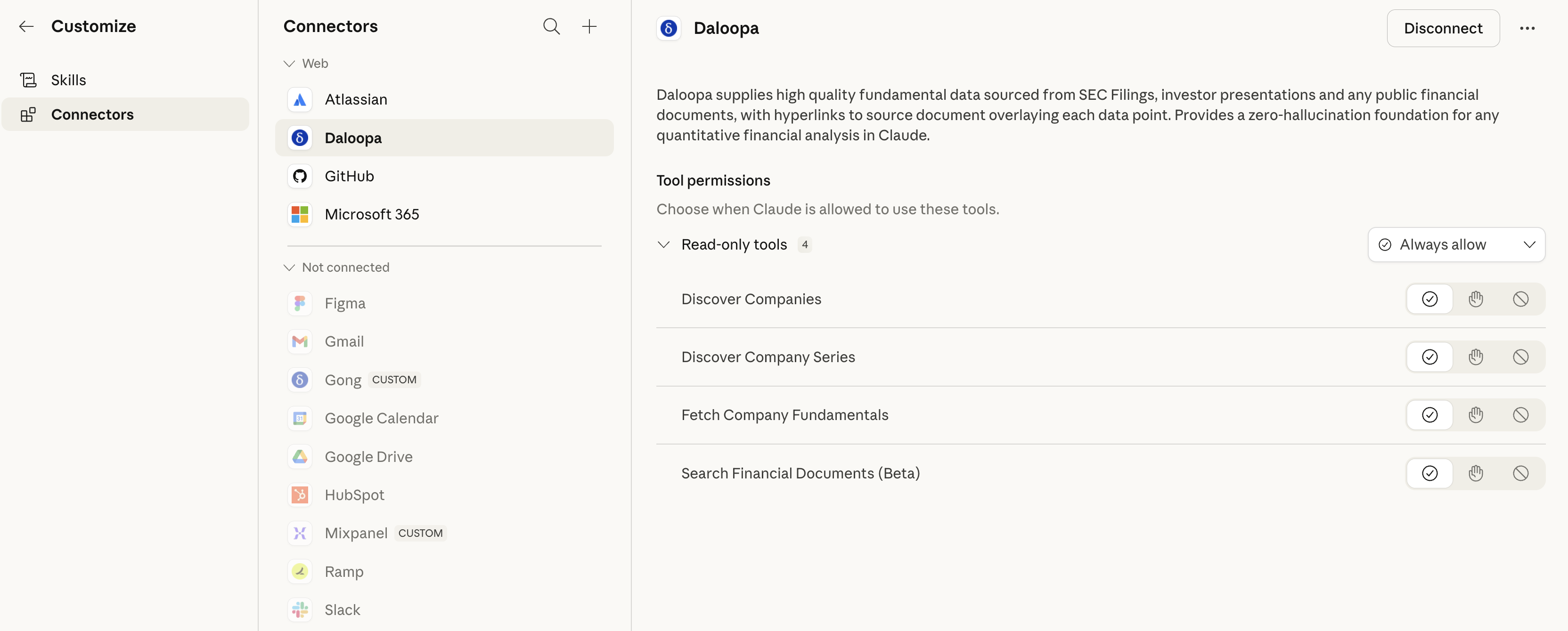
You're ready to use Daloopa with Claude.
ChatGPT
Go to Settings > Apps & Connectors:

Click Daloopa under Browse apps:
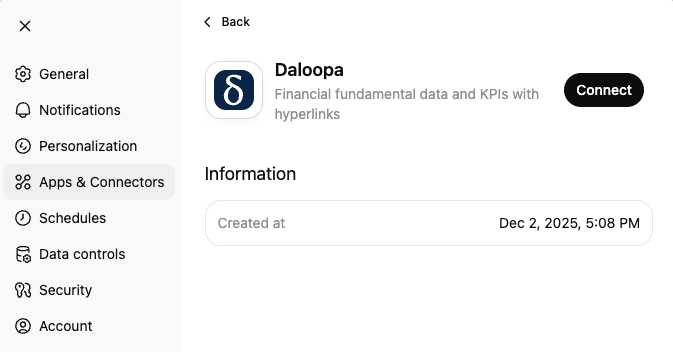
You'll be redirected to the Daloopa MCP Login Page. Enter your Daloopa email and password.
In a new chat, click the Add icon, go to More, and select Daloopa:
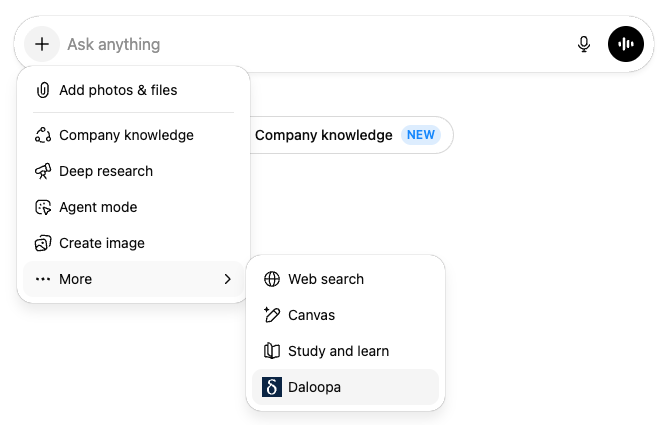
You're ready to use Daloopa with ChatGPT.
Microsoft 365 Copilot Chat
On the left-side panel, go to More Agents
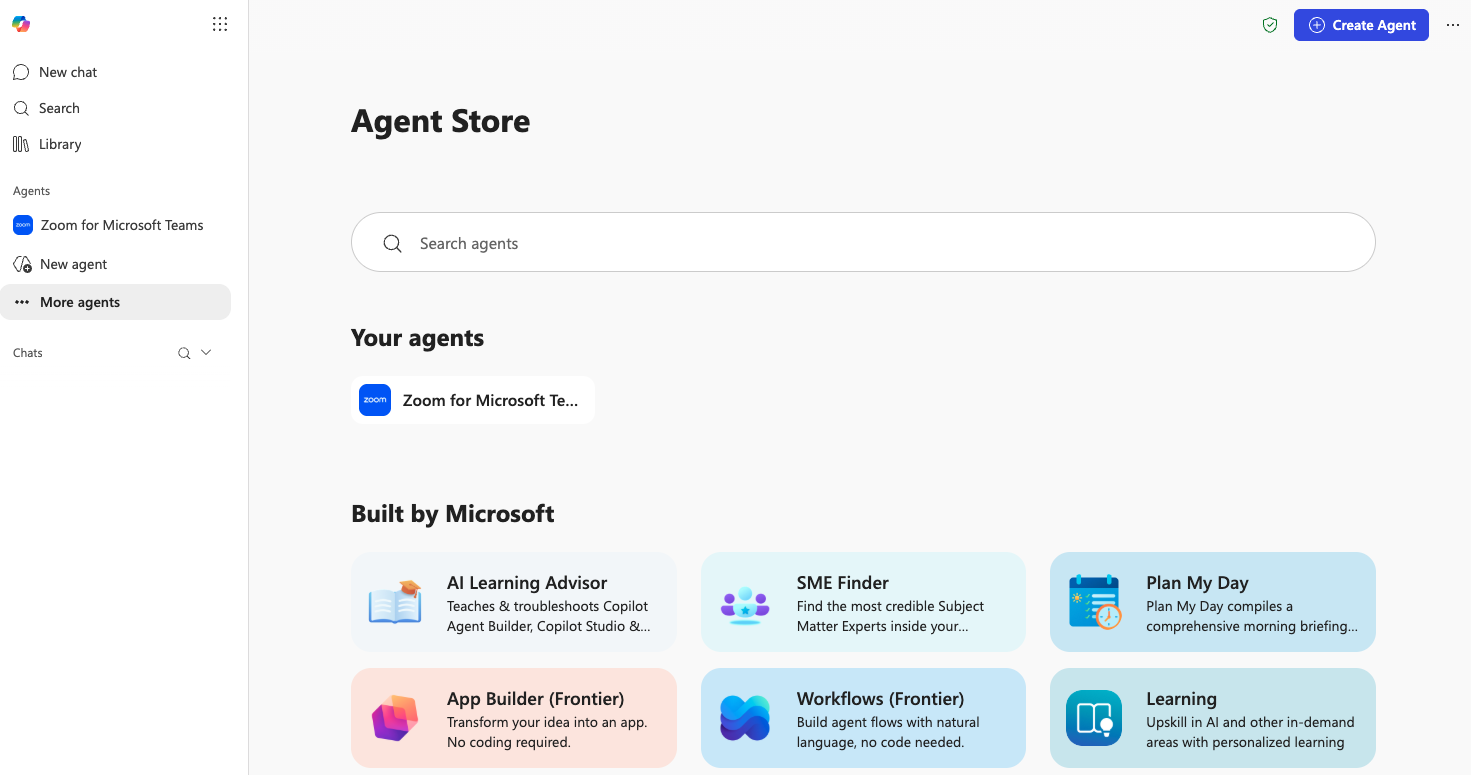
Search and find Daloopa, then click Add.
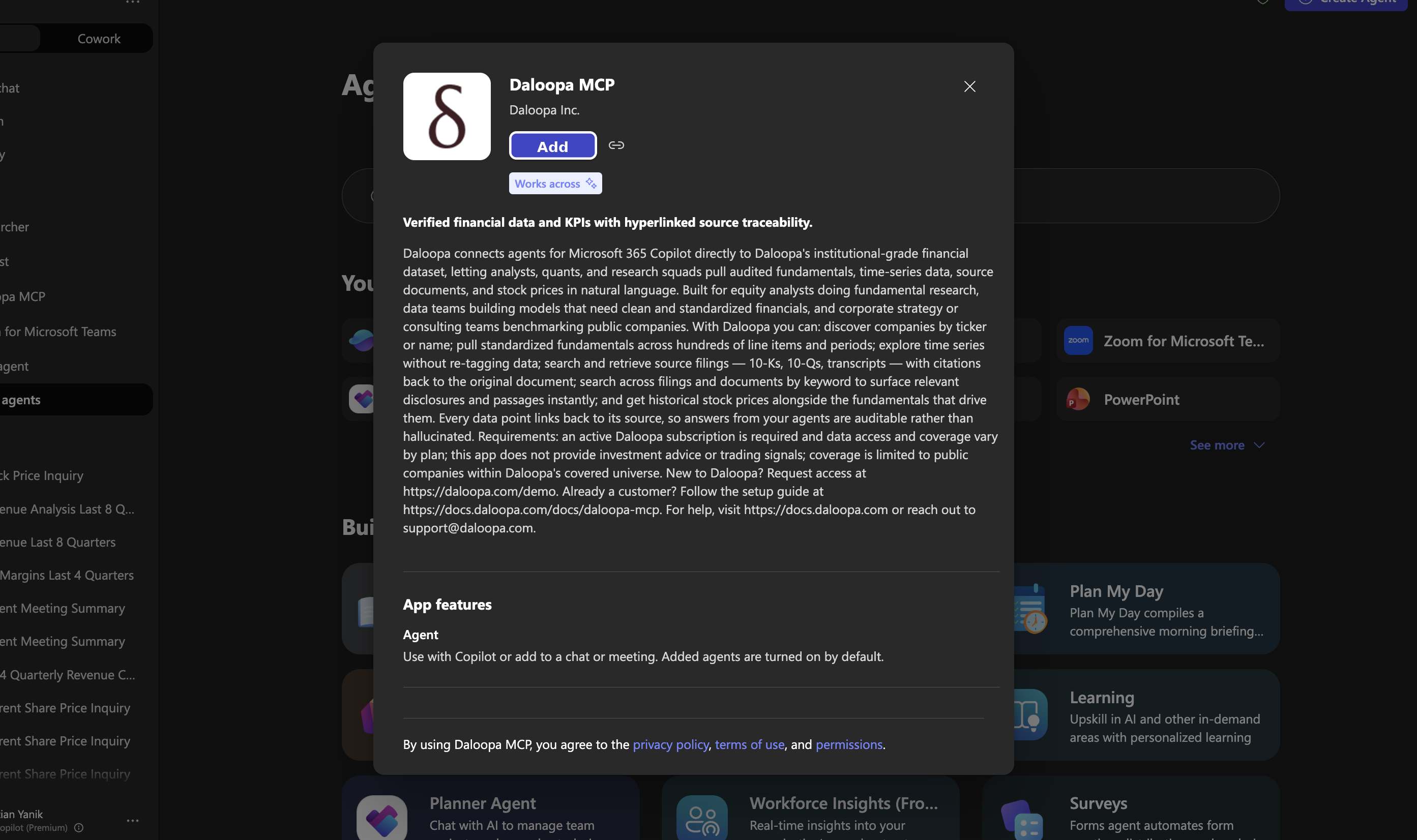
You'll be redirected to the Daloopa MCP Login Page. Enter your Daloopa email and password.
In a new chat, type @Daloopa to add the agent to the chat, or click into the agent on the right-side panel to start a chat using it.
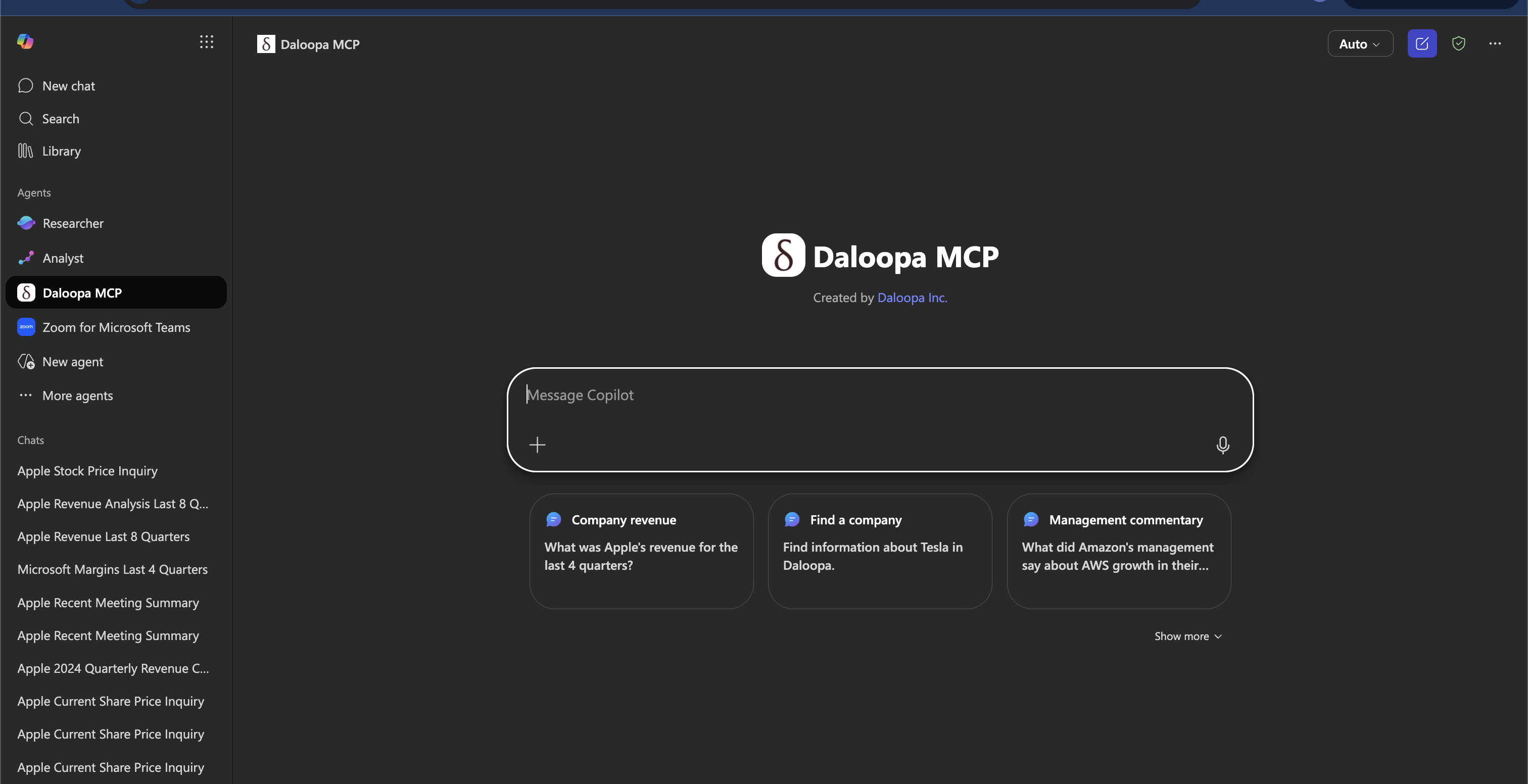
You're ready to use Daloopa with Copilot Chat.
Microsoft 365 Copilot Cowork
Open Microsoft 365 Copilot in your browser or the Microsoft 365 Copilot desktop app, and switch from Chat to Cowork.
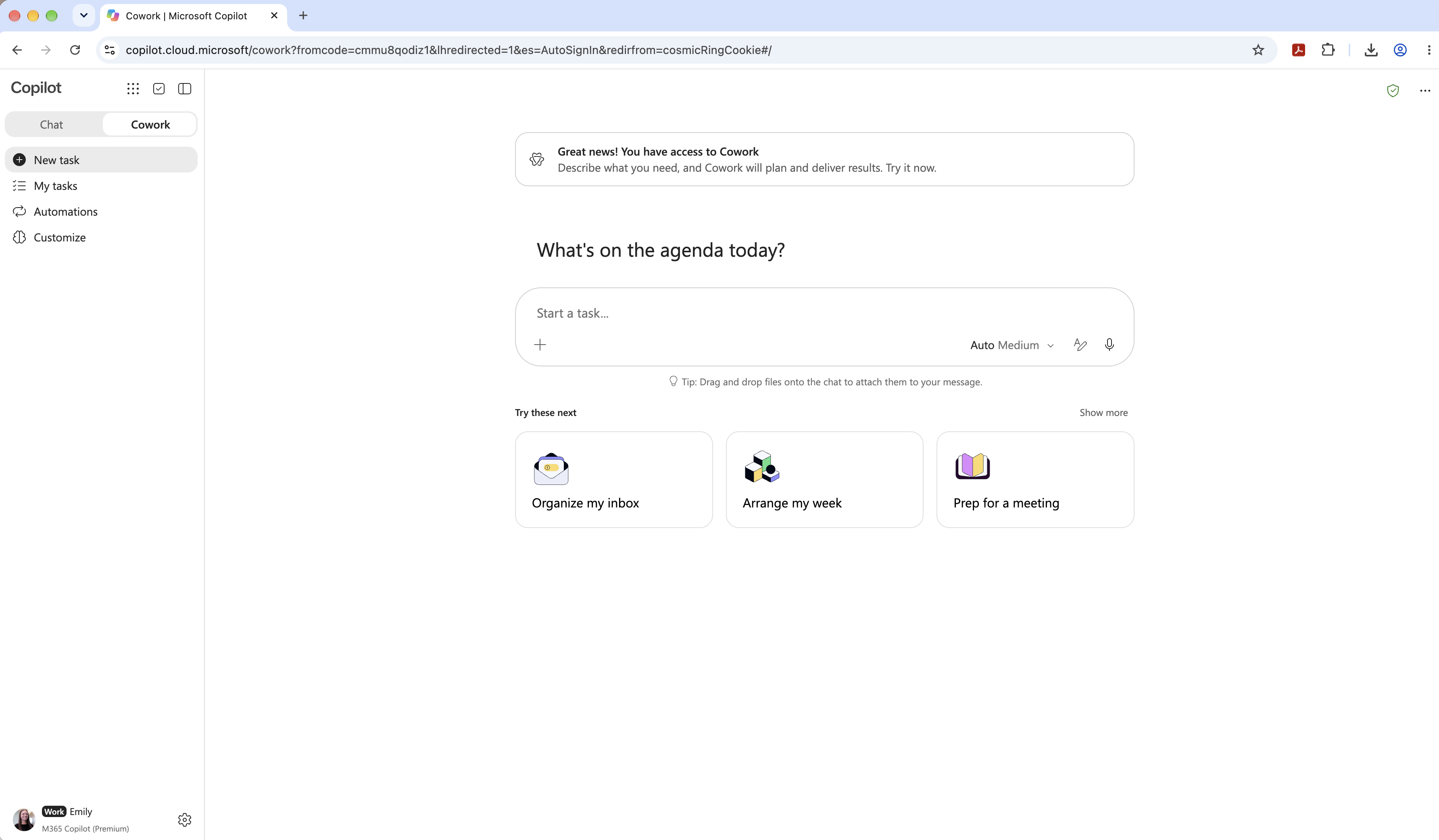
On the left-side panel, go to Customize. Find Daloopa and toggle it on. If you don't see Daloopa, an admin may need to approve or deploy the Daloopa plugin first.
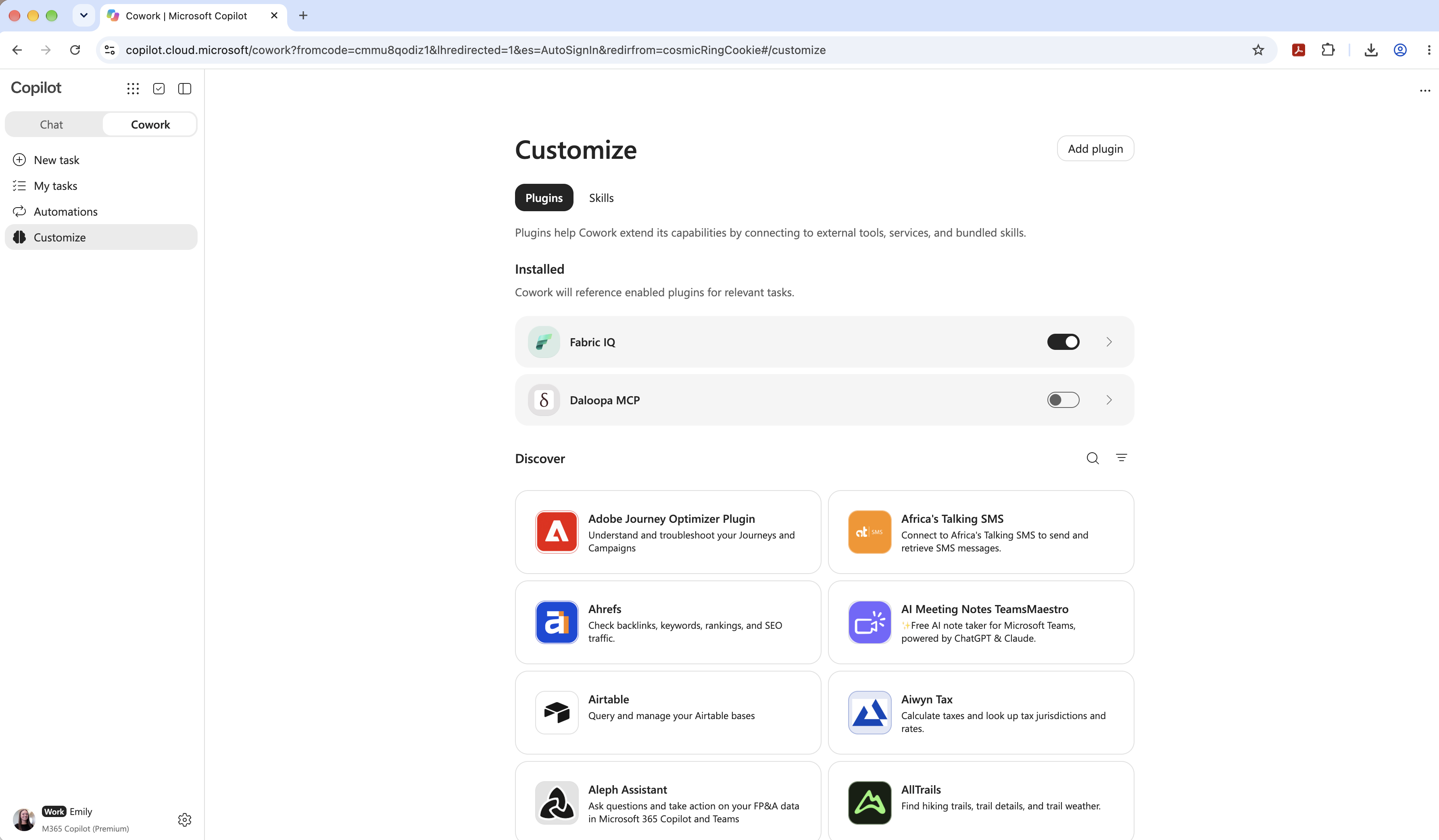
Click Connect.
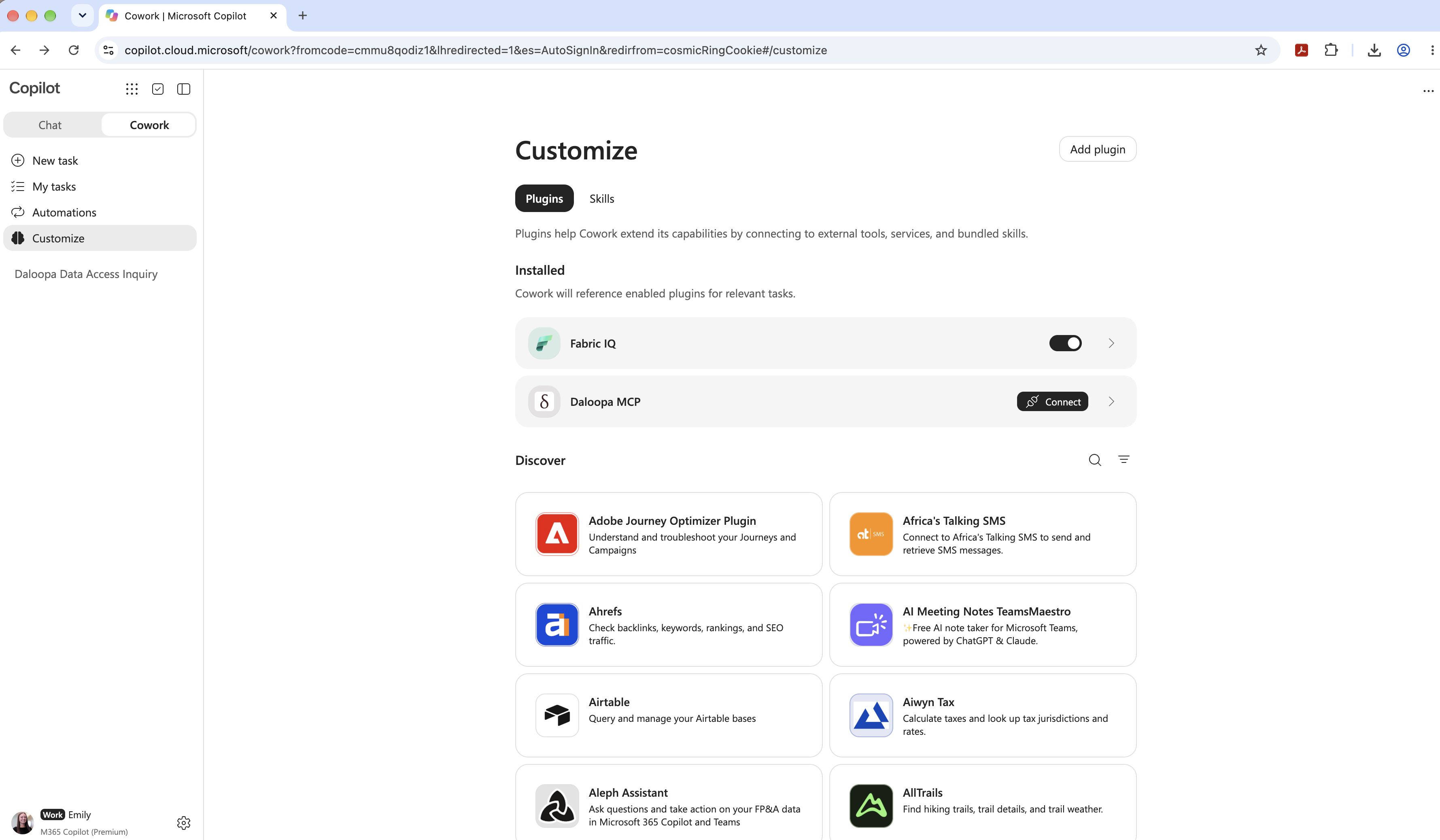
You'll be redirected to the Daloopa MCP Login Page. Enter your Daloopa email and password.
In a new chat, enter your prompt. For best practices mention within the prompt to "use Daloopa data."
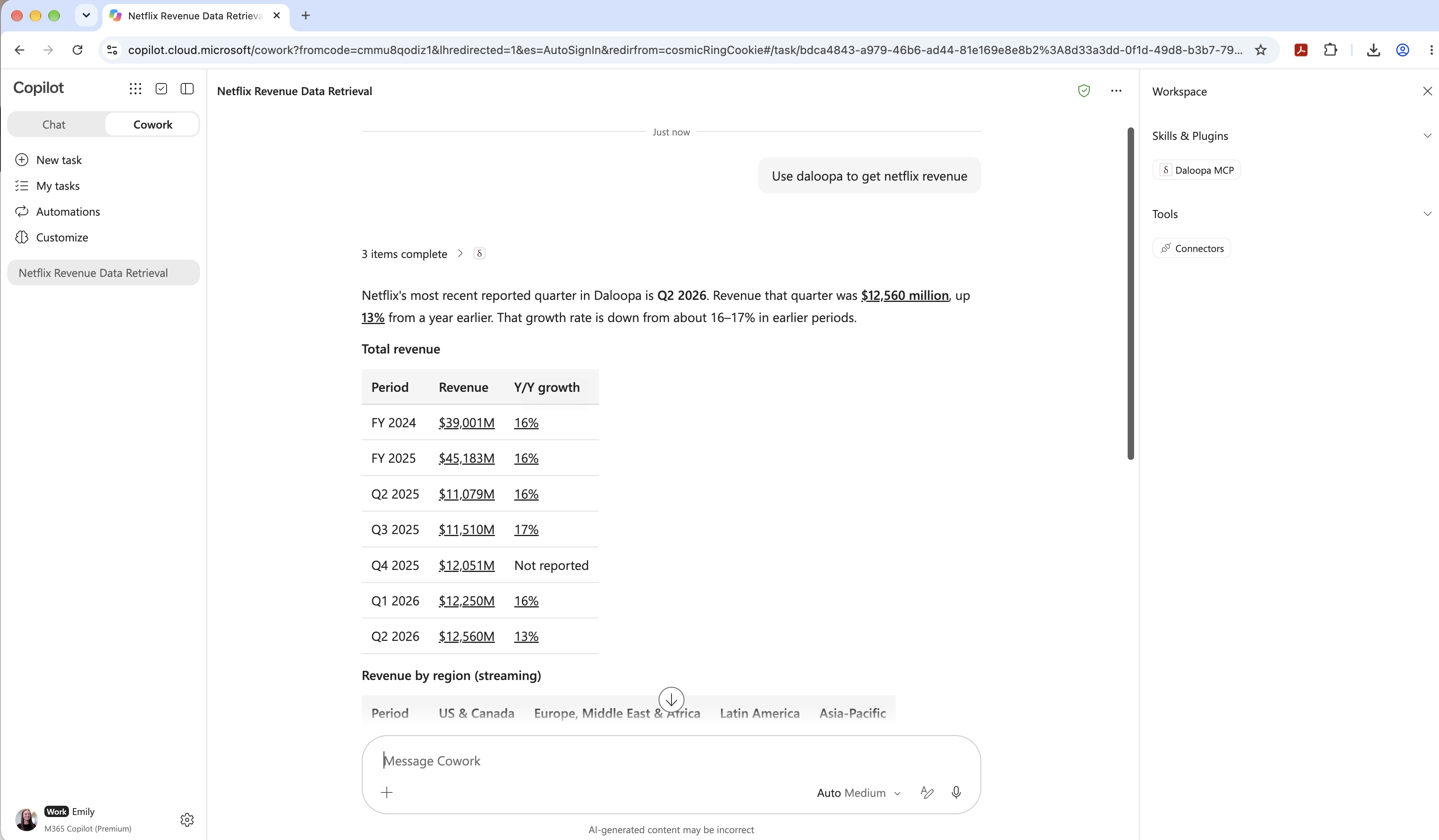
You're ready to use Daloopa with Copilot Cowork.
Gemini Enterprise
If you are part of an organization, an admin may need to set up the Daloopa connector first.
Once Daloopa is available to you:
Open Gemini Enterprise and start a new chat and click the "Connectors" icon (puzzle piece) in the chat box.
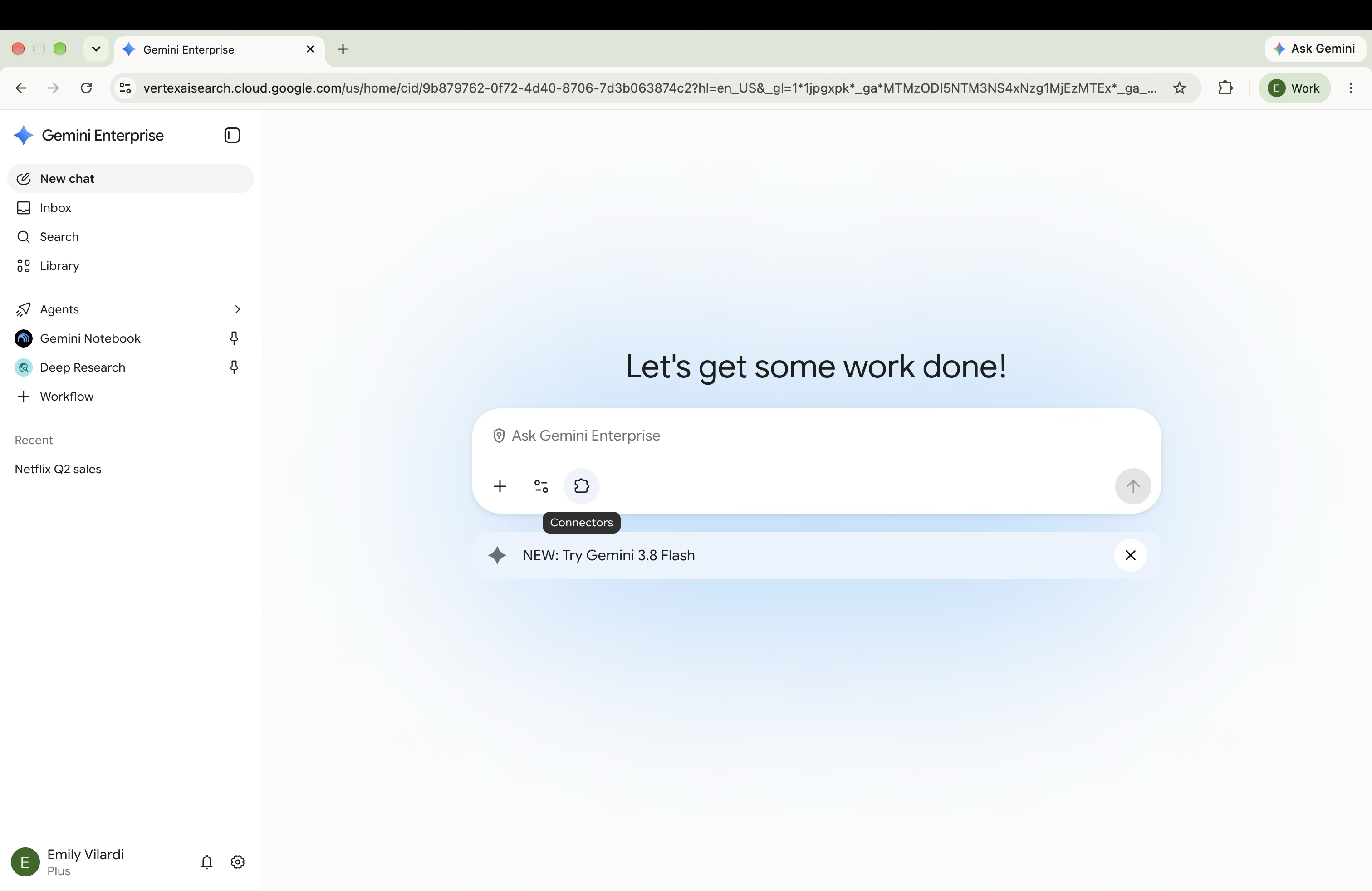
Find Daloopa in the connector list and toggle Daloopa on using the slider.
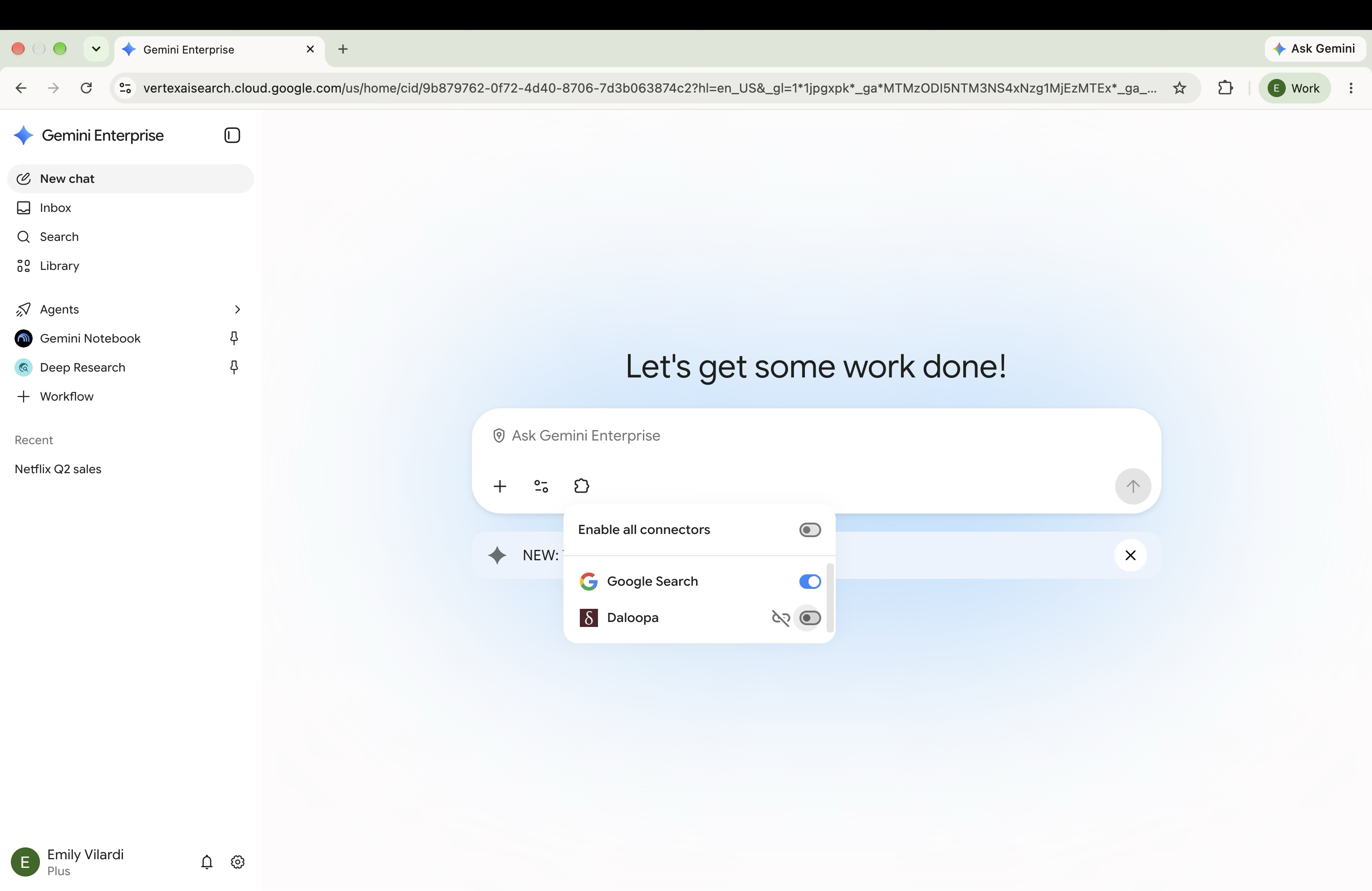
You'll be redirected to the Daloopa MCP Login Page. Enter your Daloopa email and password. On success, you'll be redirected back to Gemini with the connection established.
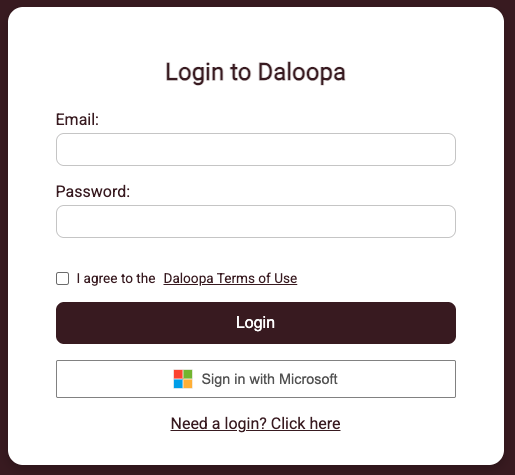
Verify that Daloopa appears as a connected connector.
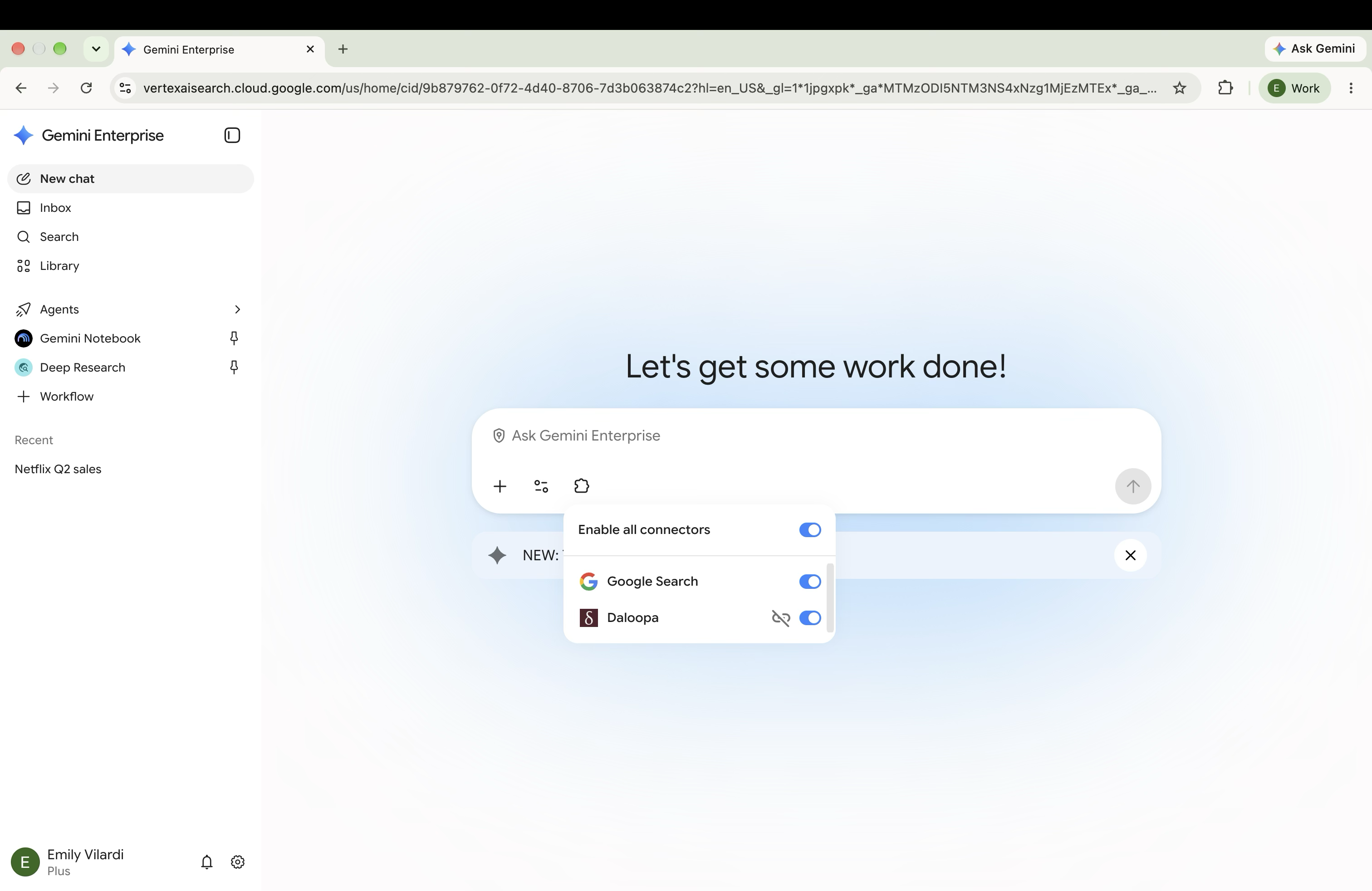
You're ready to use Daloopa with Gemini Enterprise.
Perplexity AI
Daloopa is available to Perplexity Enterprise Pro and Enterprise Max users.
Go to Settings > Connectors. You can find Settings under your organization icon in the bottom-left corner of the Perplexity web app.
Search for "Daloopa."
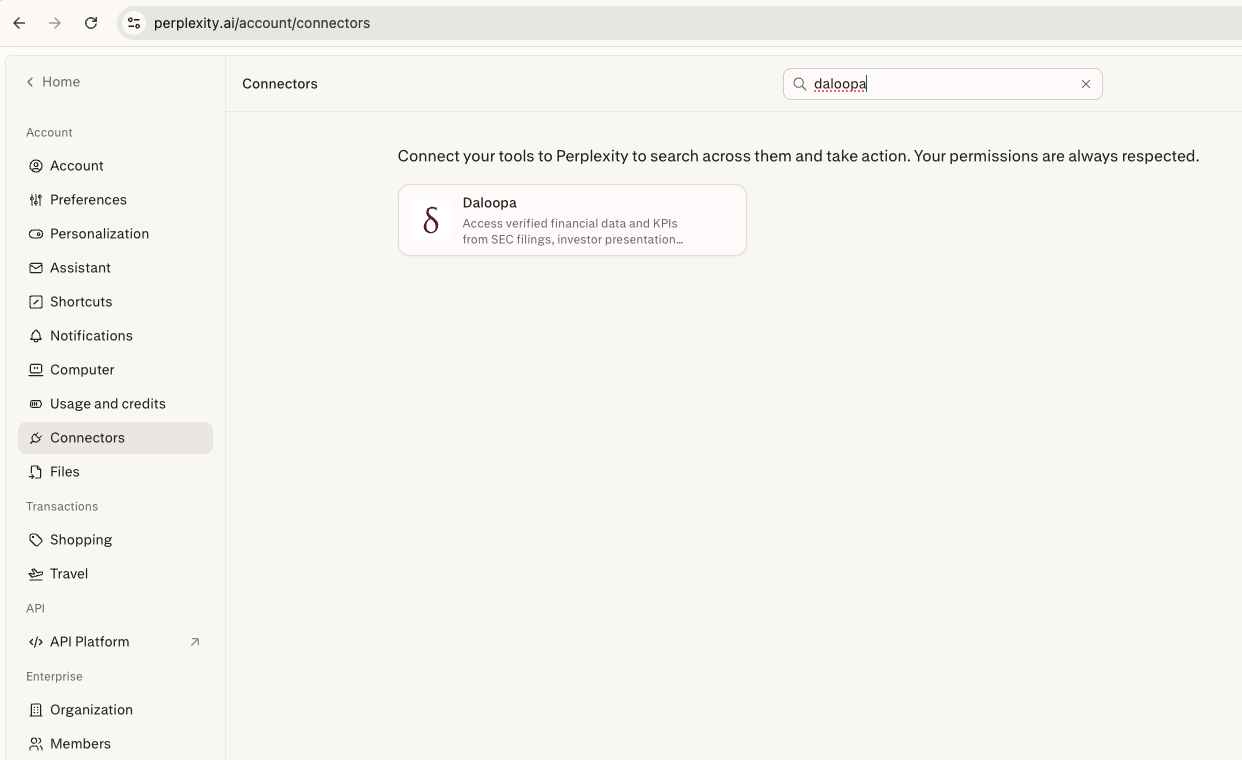
Click on Daloopa connector tile and click Add Connector.
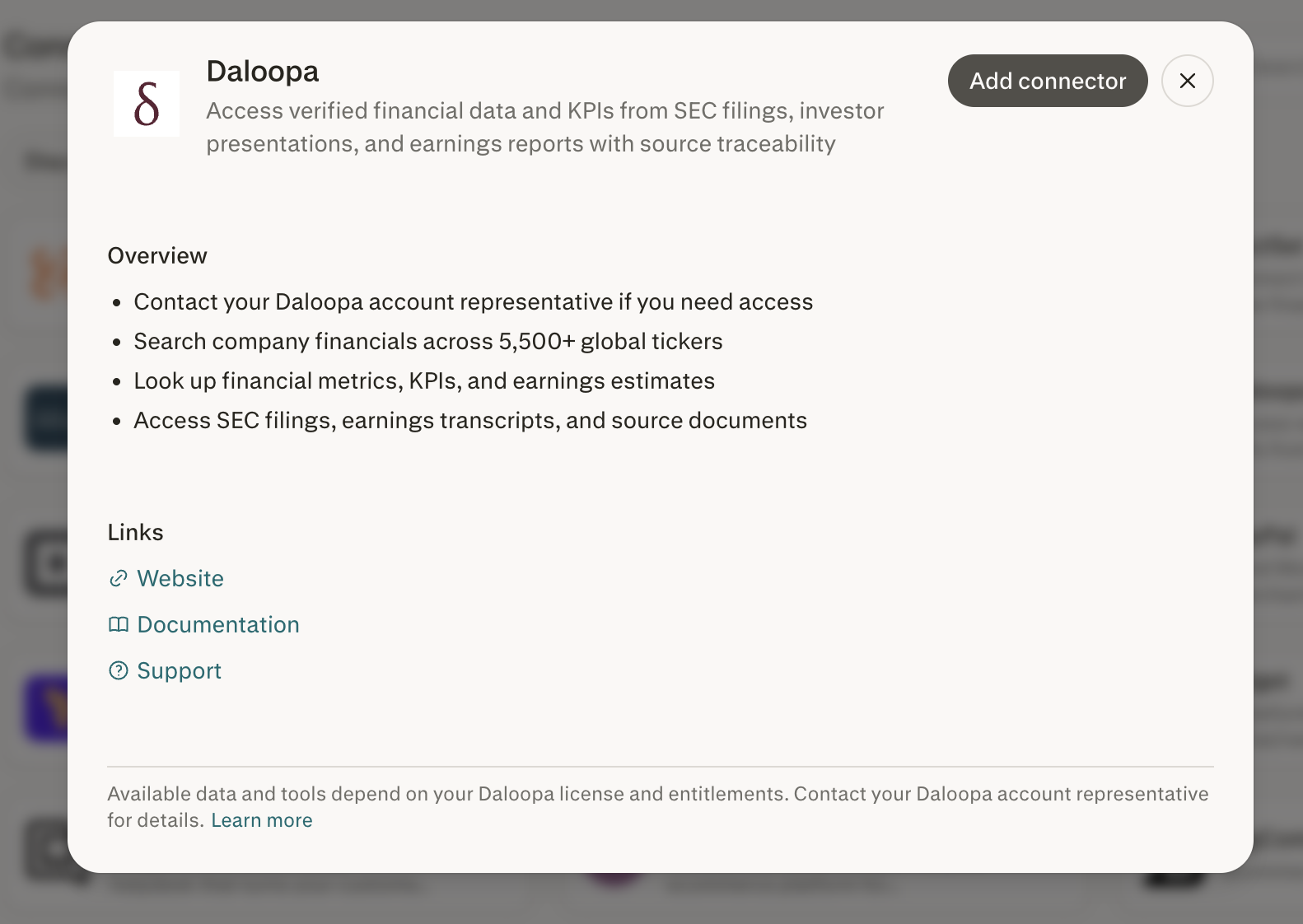
You'll be redirected to the Daloopa MCP Login Page. Enter your Daloopa email and password. On success, you'll be redirected back to Perplexity with the connection established.
Verify that Daloopa appears as a connected connector.
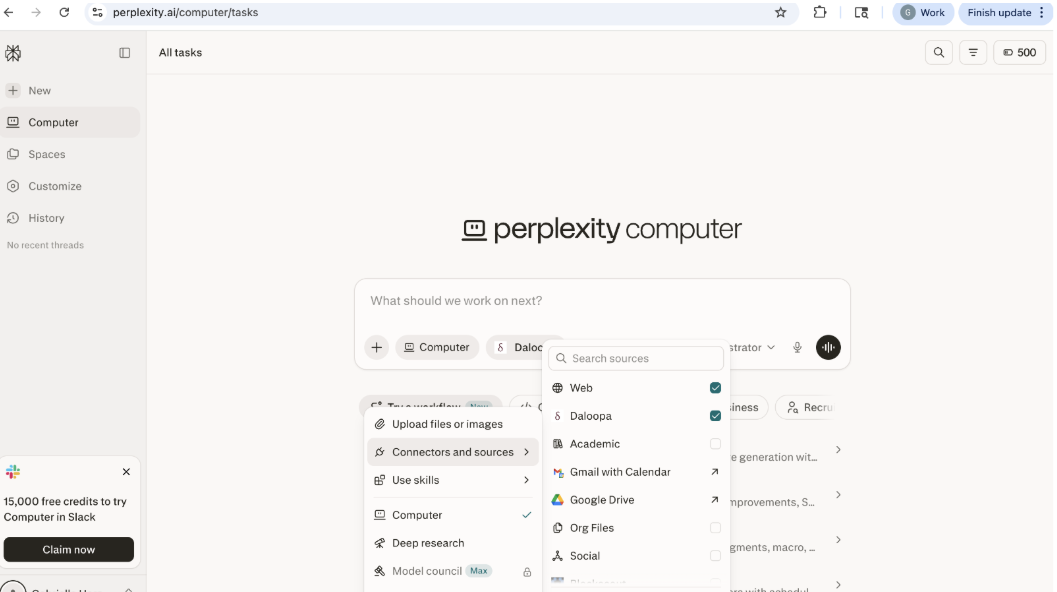
You're ready to use Daloopa with Perplexity.
Hebbia
On the left-side panel go to "Customize."
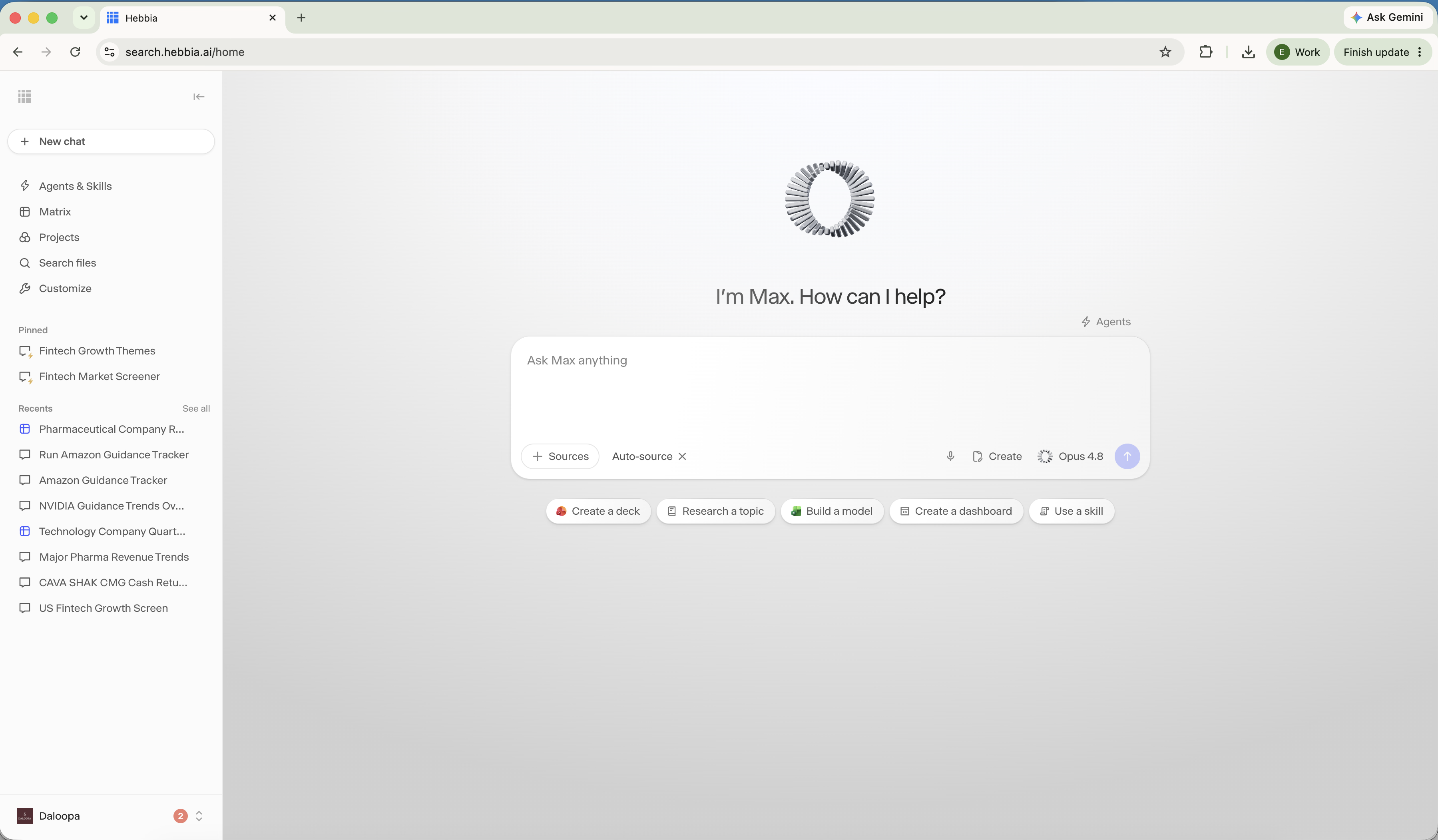
Under the Connectors tab, search for "Daloopa."
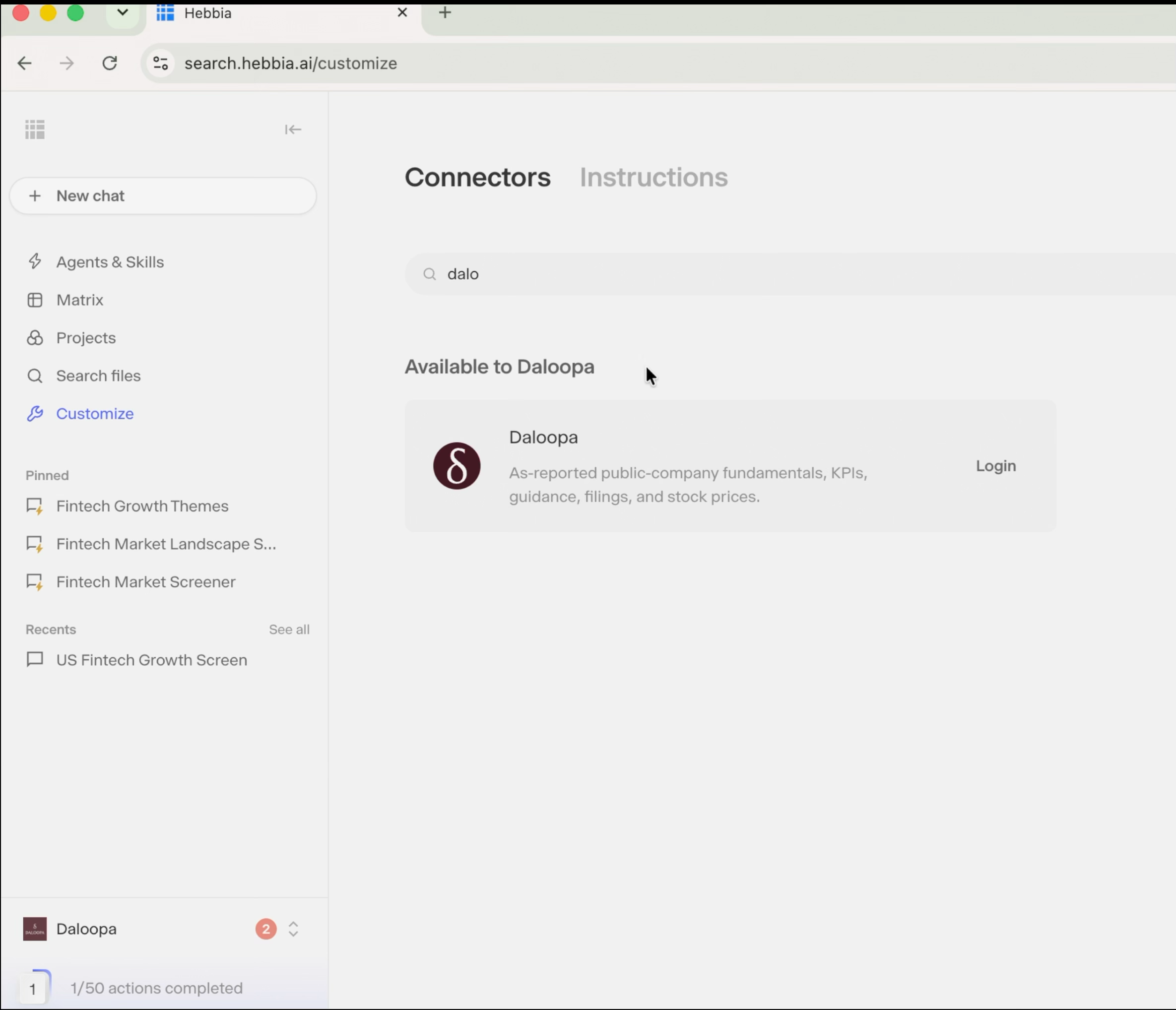
Click on Daloopa connector tile and click Login.
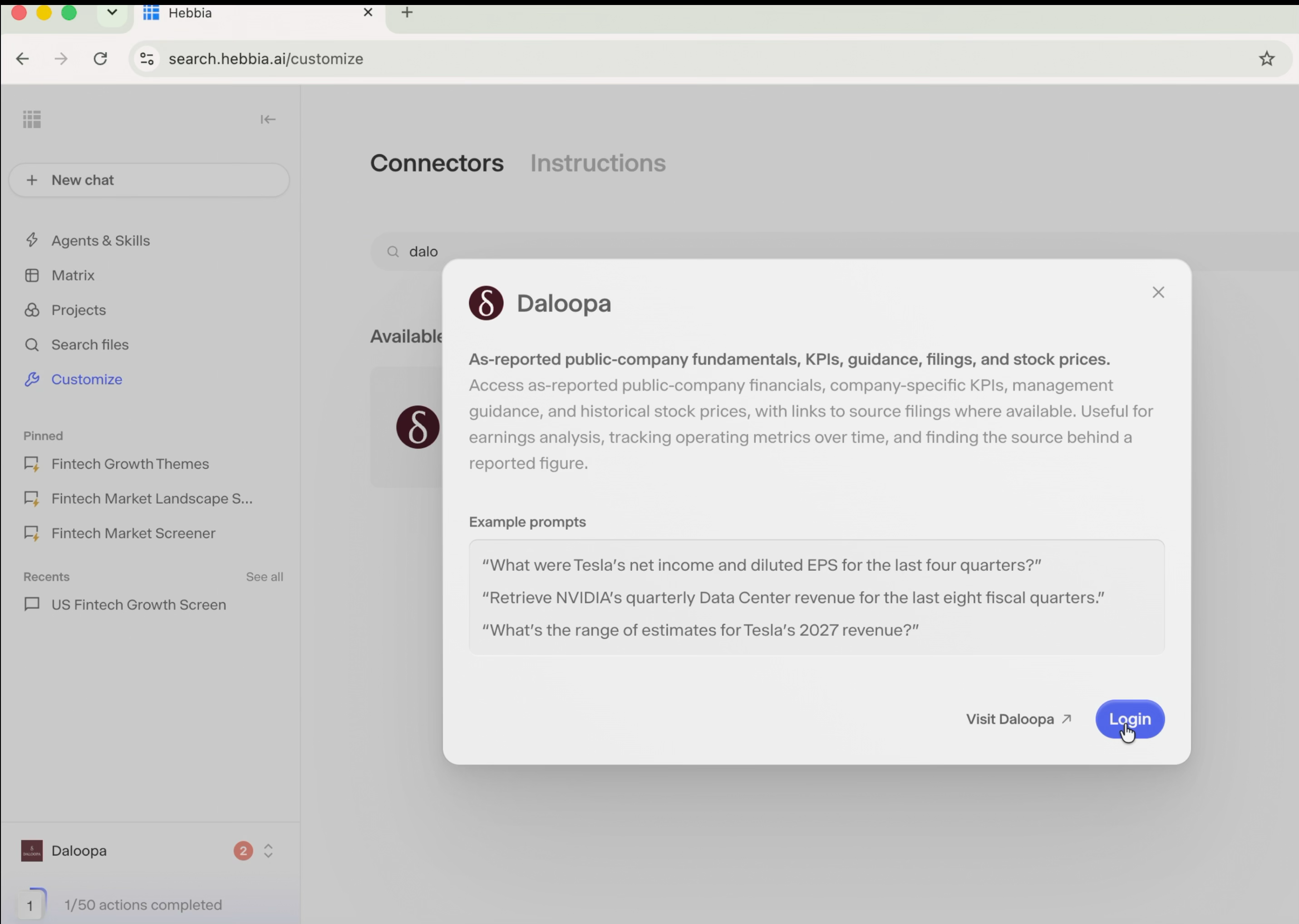
You'll be redirected to the Daloopa MCP Login Page. Enter your Daloopa email and password. On success, you'll be redirected back to Hebbia with the connection established.
Verify that Daloopa appears as a connected connector.
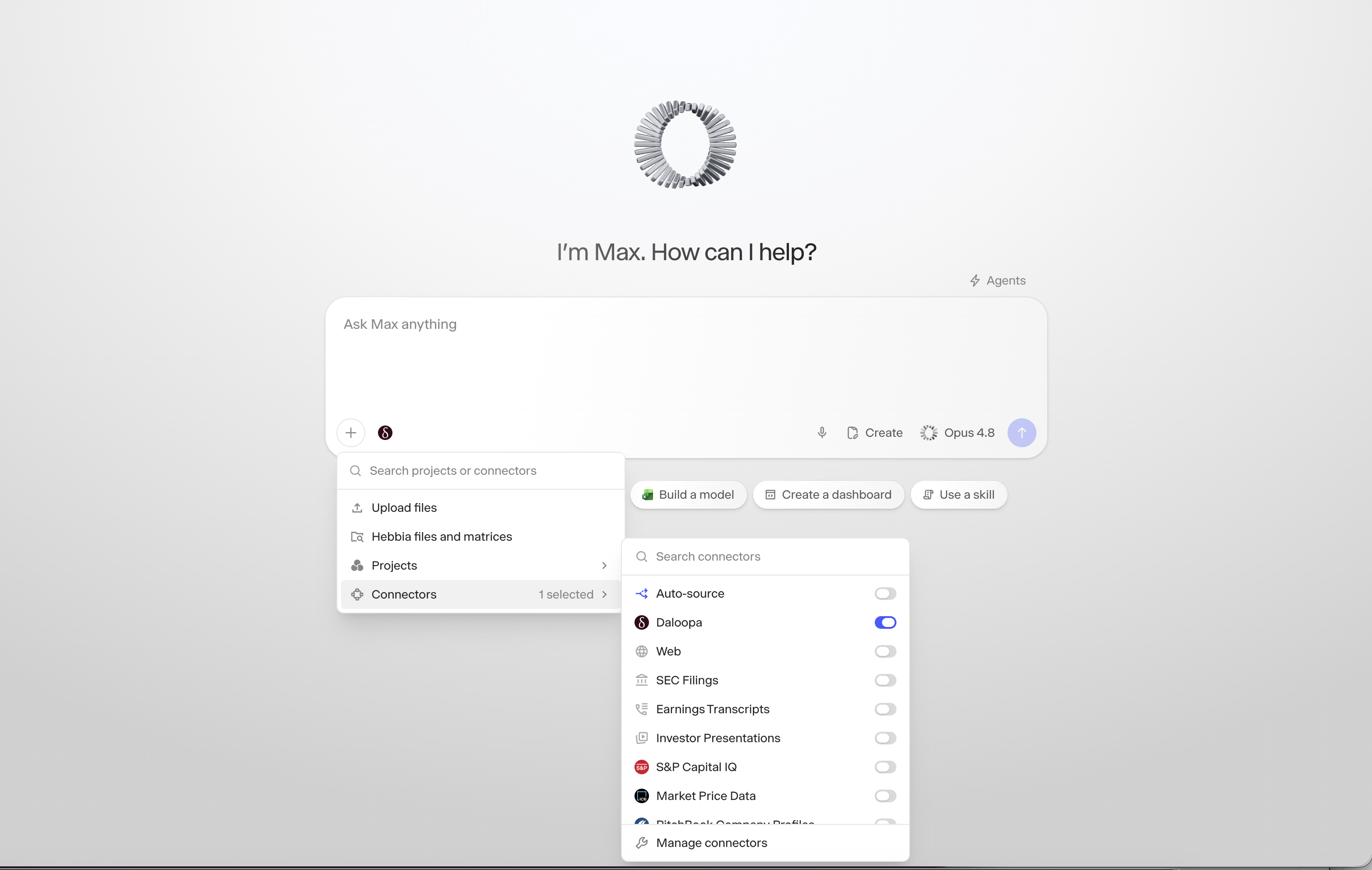
You're ready to use Daloopa with Hebbia.
Rogo
Go to Account Settings > Connections:
Find Daloopa under Felix Connectors and click Connect.
You'll be redirected to the Daloopa MCP Login Page. Enter your Daloopa email and password. On success, you'll be redirected back to Rogo with the connection established.
To manage tool permissions click Configure. All tools are enabled by default. Click the green slider next to any tool to turn it off.
In a new chat, click the Configure Sources icon and select Daloopa.
You're ready to use Daloopa with Rogo.
Model ML
Go to Customize > Connectors, search for Daloopa, and click Connect on the Daloopa tile. The tile appears for every user the admin enabled it for.
Don't see the Daloopa tile? Ask your organization admin to confirm Daloopa is enabled and that you are included in its access list (Org settings > MCP Connections, or Org settings > User access).
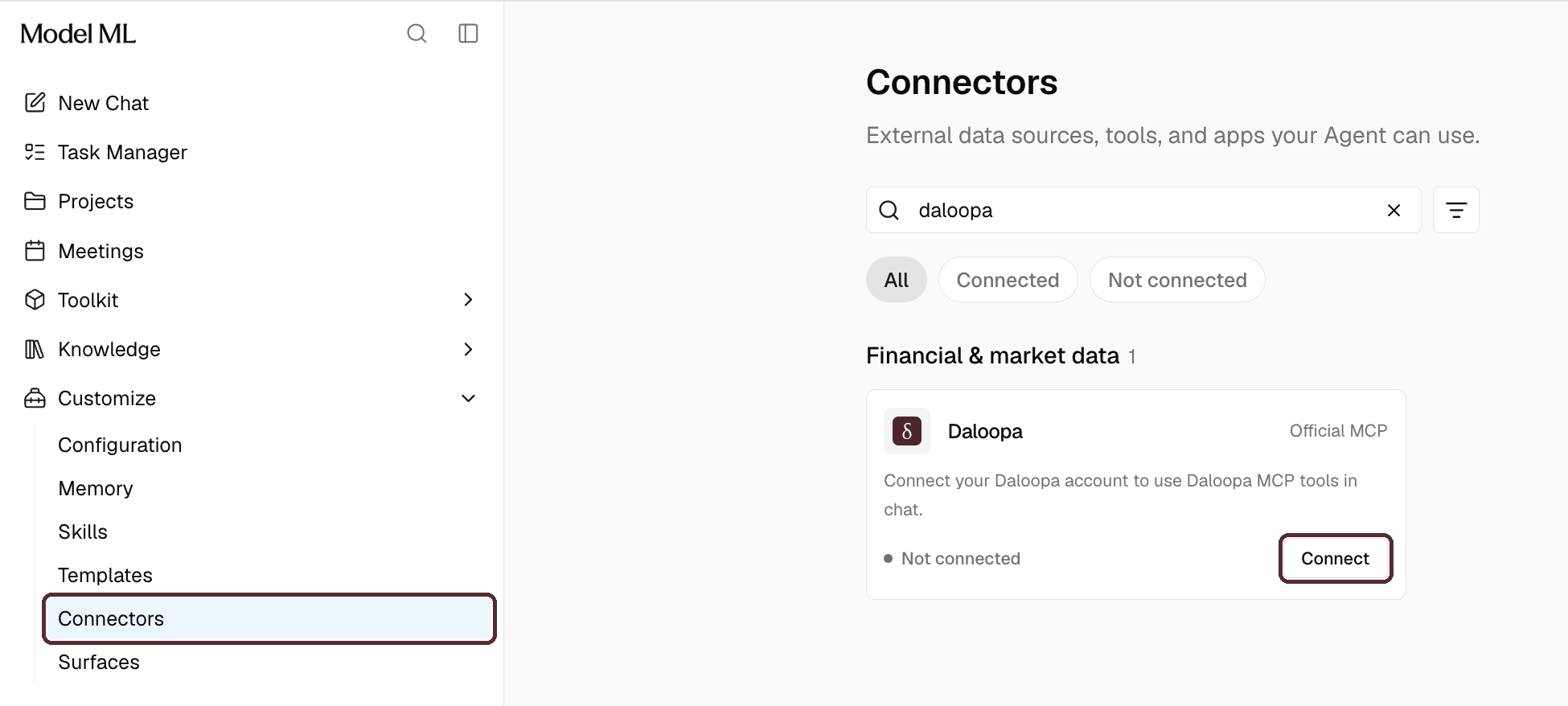
You'll be redirected to the Daloopa MCP Login Page. Enter your Daloopa email and password (or use Sign in with Microsoft), accept the Terms of Use and click Login. On success, you'll be redirected back to Model ML with the connection established.
You're ready to use Daloopa with Model ML.
Samaya AI
Click on your profile and ago to "Connectors."
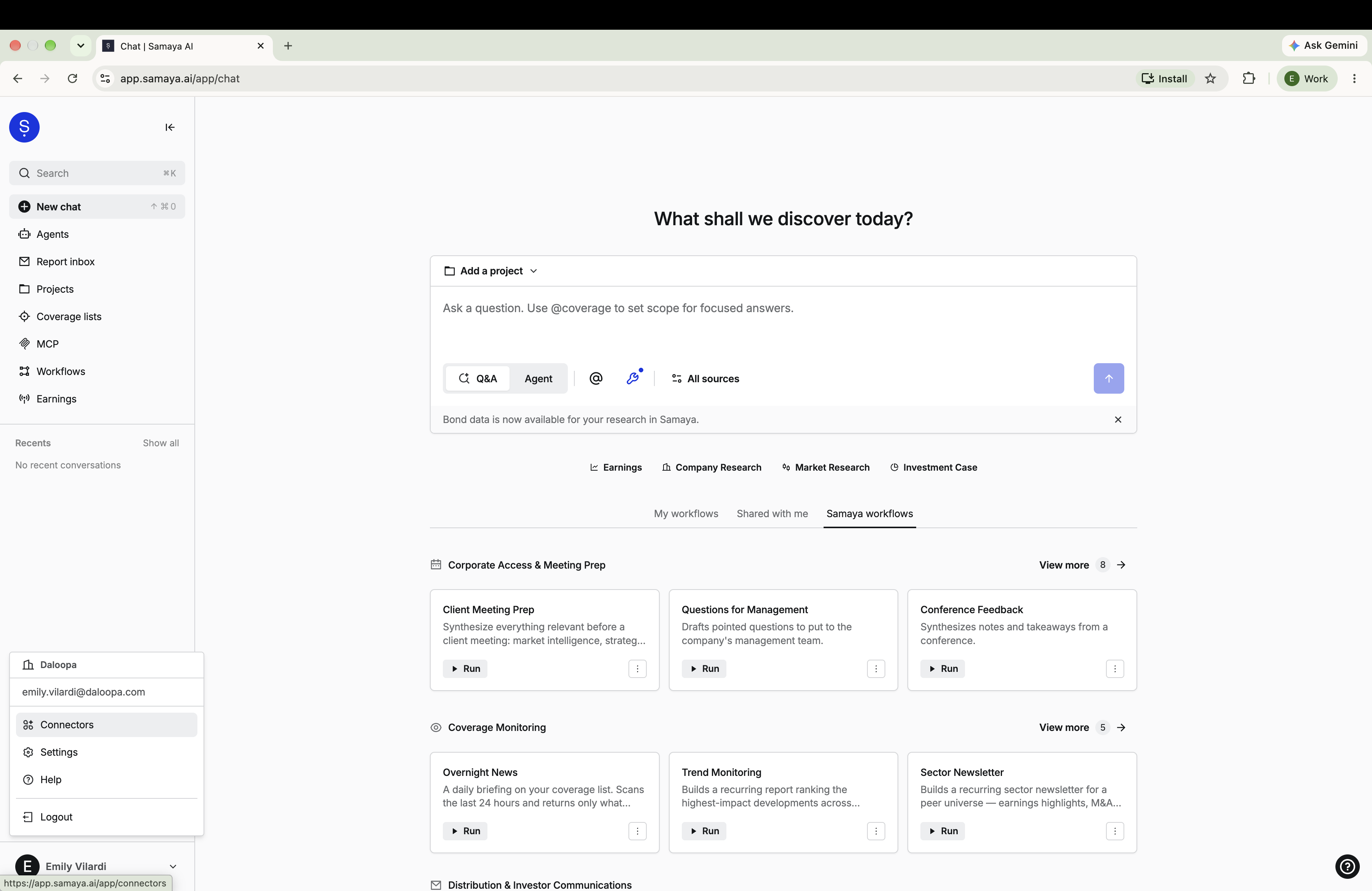
In "Your Organziation" look for "Daloopa" and slide the button to connect.
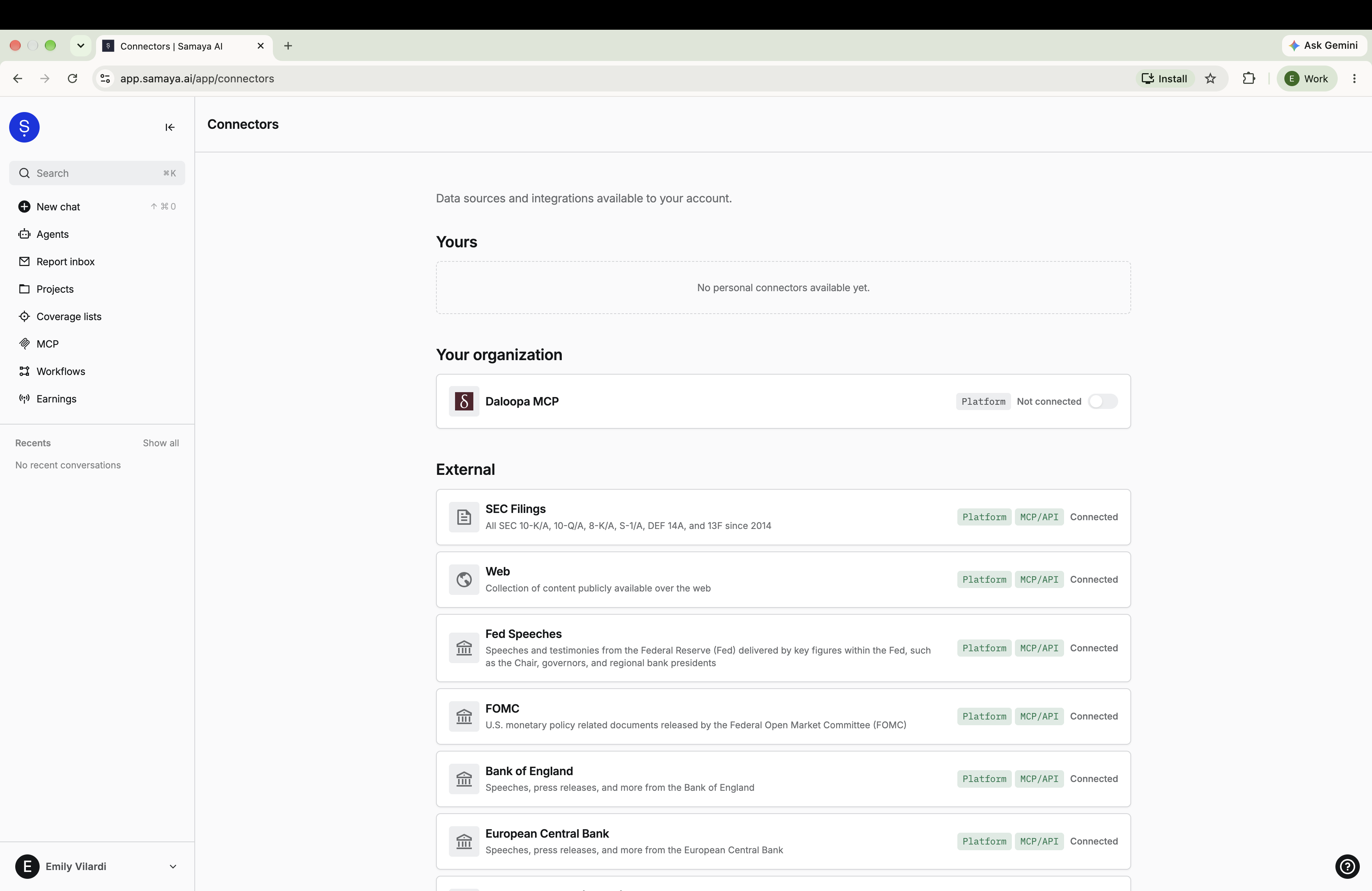
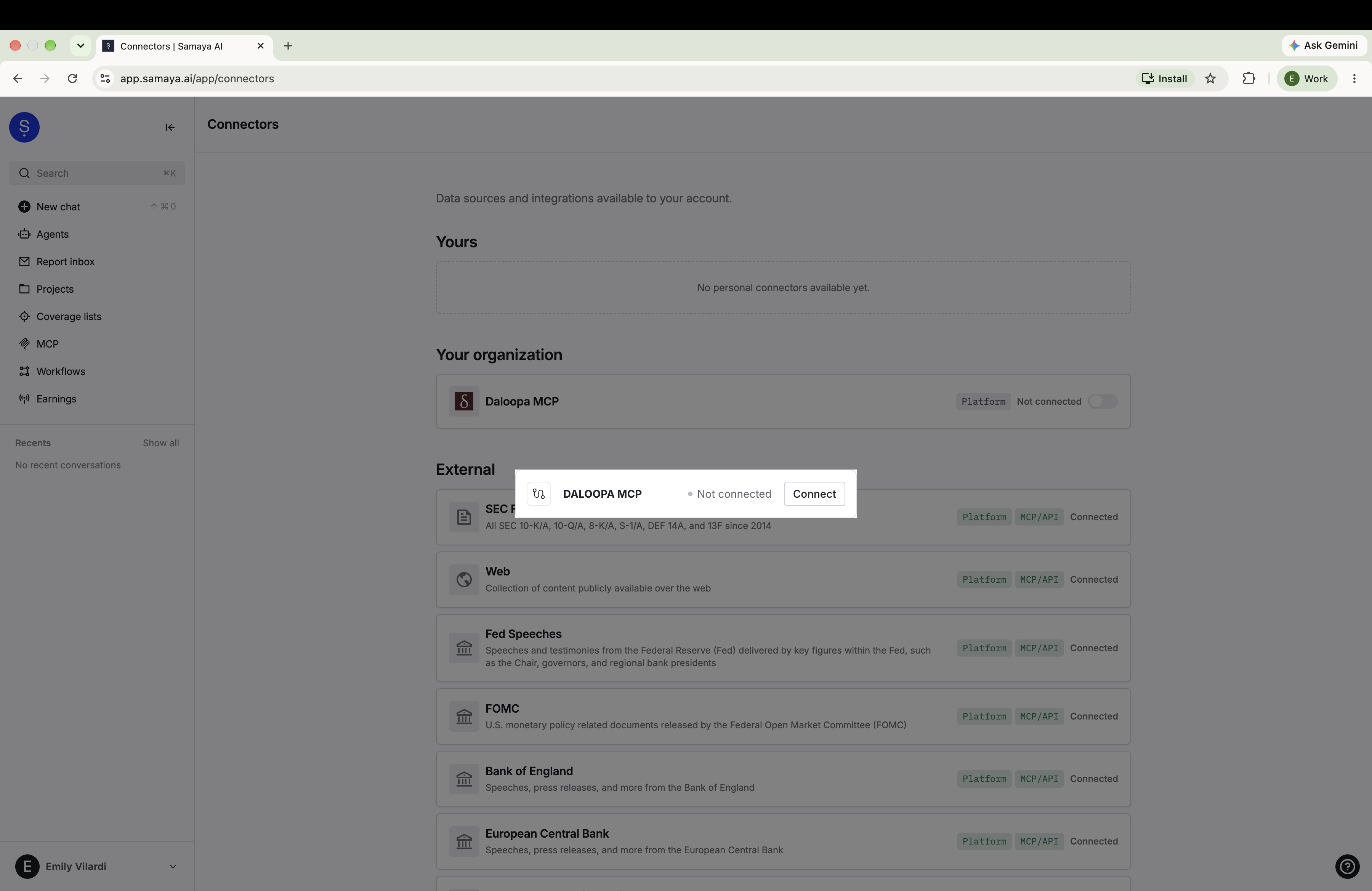
Click "Connect" on both pop-ups.
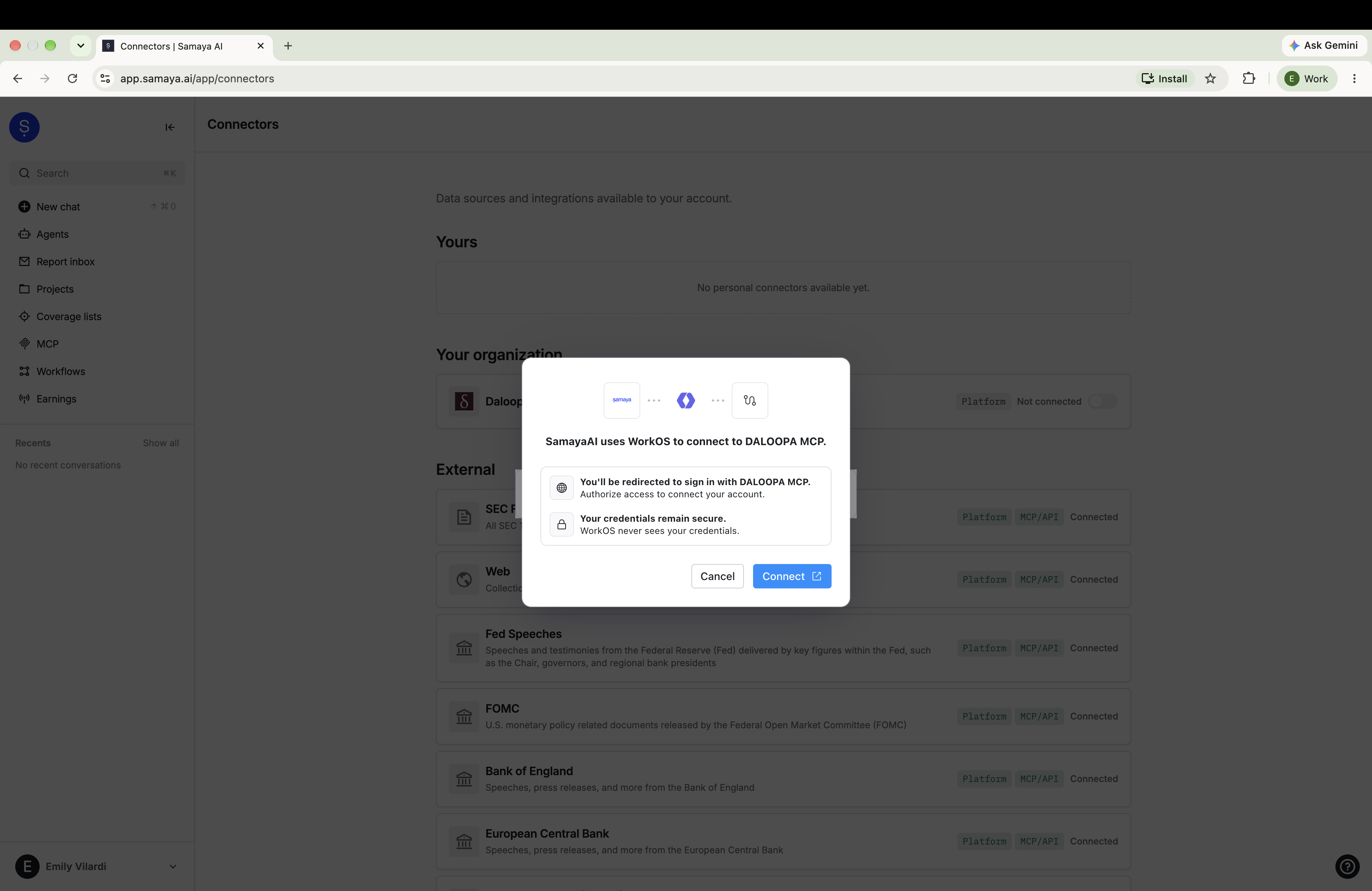
You'll be redirected to the Daloopa MCP login page. Enter your Daloopa email and password. On success, you'll be redirected back to Samaya AI with the connection established.
Verify that Daloopa appears as a connected connector by clicking into "All Sources."
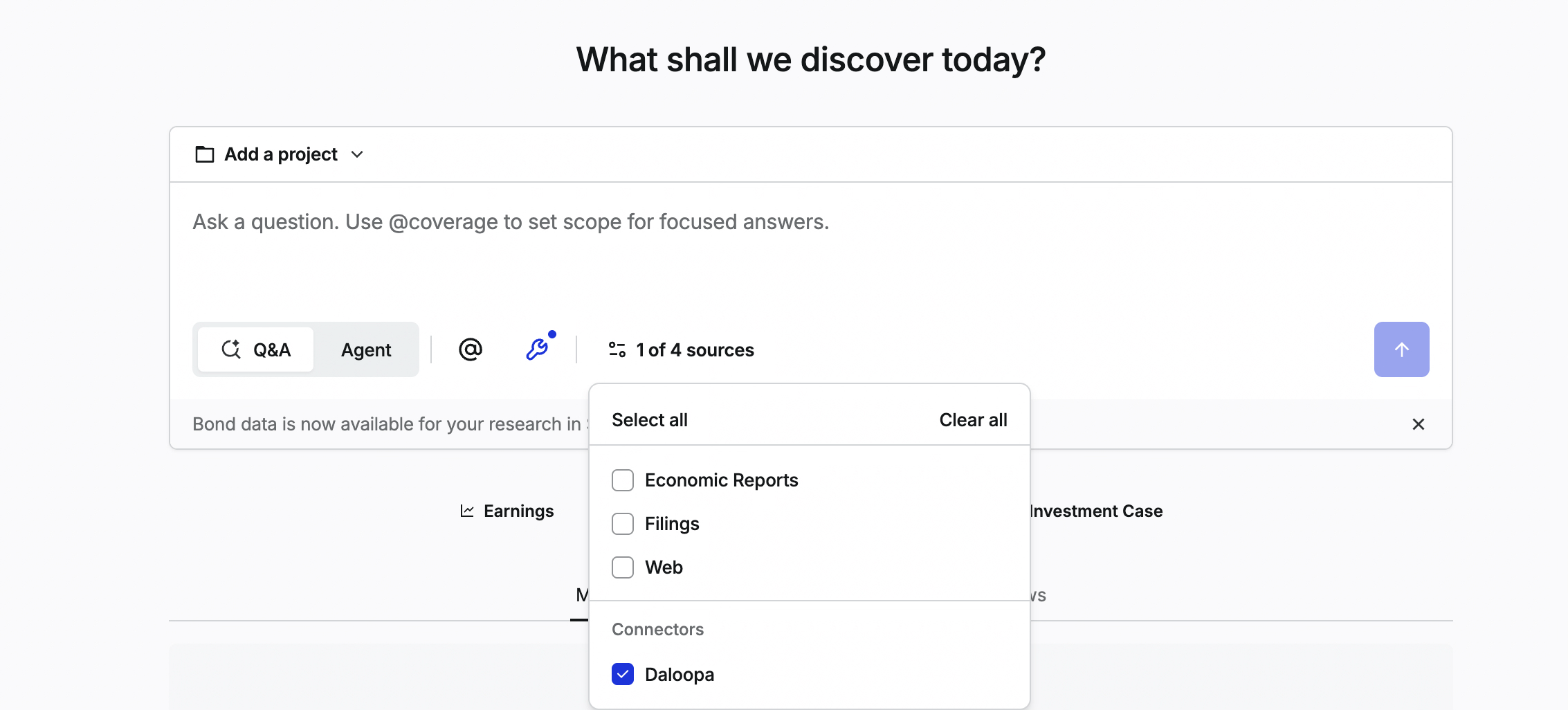
You're ready to use Daloopa with Samaya AI.
Glean
Go to Your Settings > Connectors.
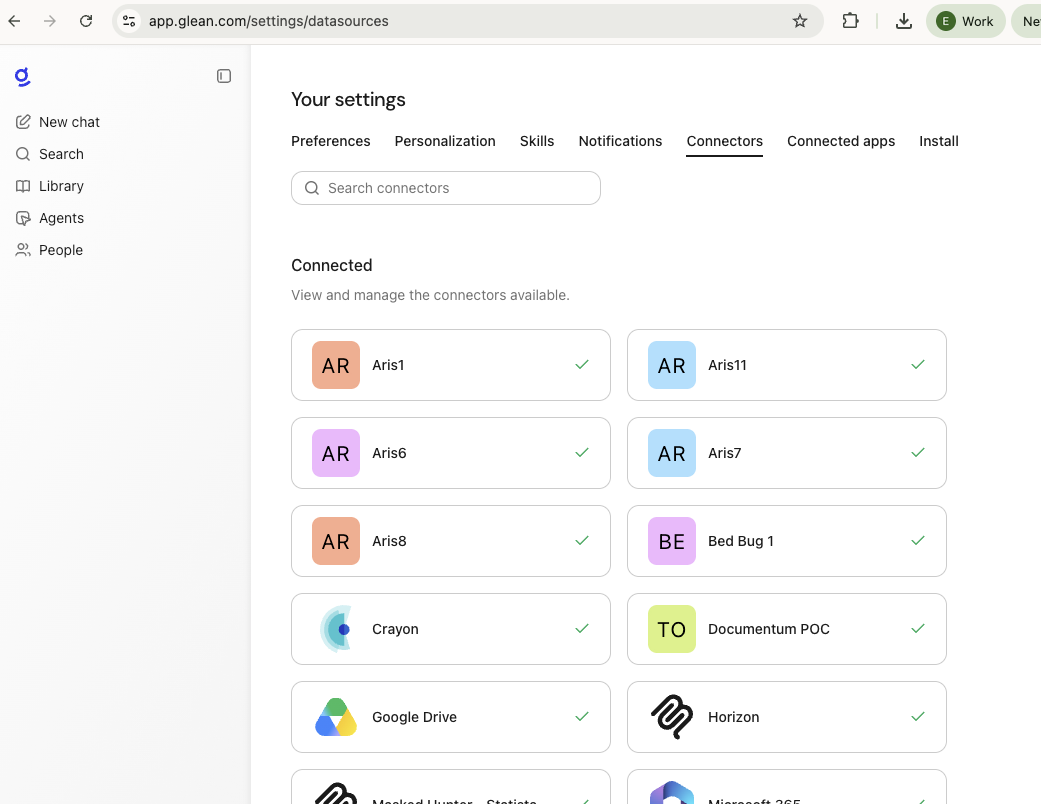
Search and select Daloopa and then click Authorize.
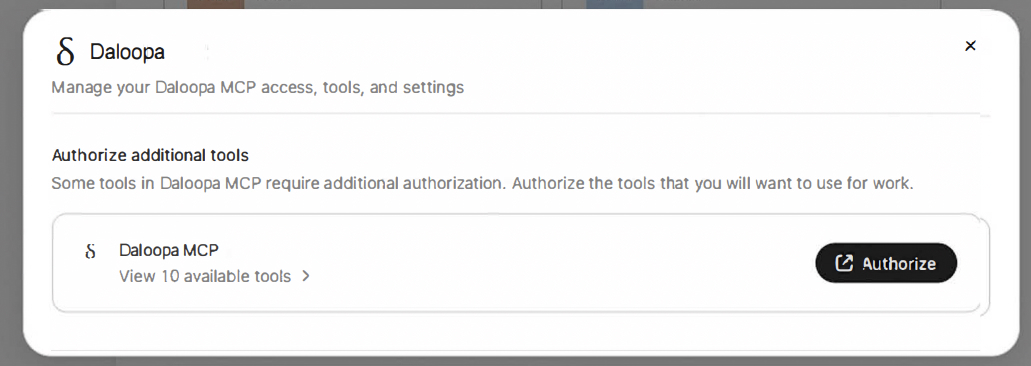
You'll be redirected to the Daloopa MCP Login Page. Enter your Daloopa email and password. On success, you'll be redirected back to Glean with the connection established.
In a new chat, enter your prompt and specify to use the Daloopa MCP.
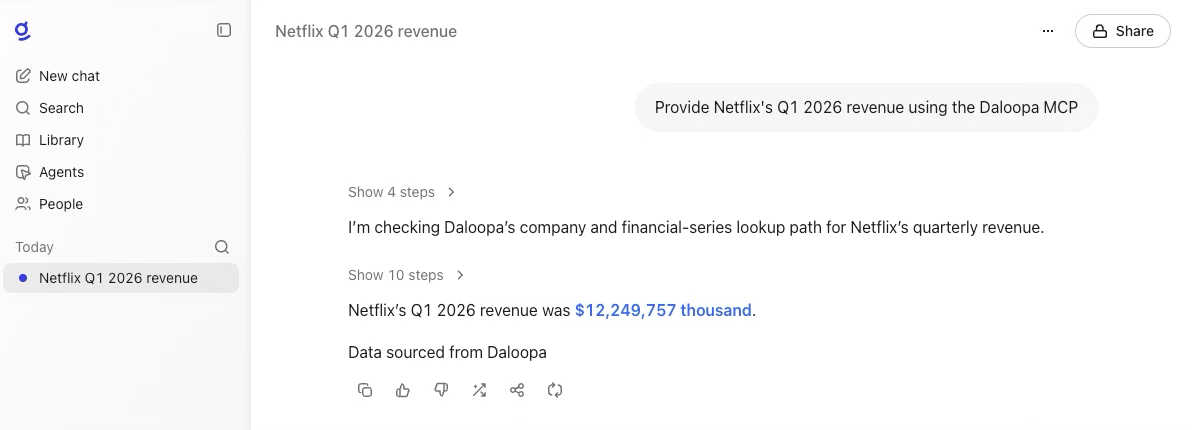
You're ready to use Daloopa with Glean.
Claude Desktop
The Claude Desktop app has three tabs — Chat, Code, and Cowork. All three can access Daloopa via the connectors you set up on claude.ai (they sync automatically).
Chat tab: Same as claude.ai but running natively.
Code tab: Claude Code with a graphical interface. Also picks up MCP servers configured via the Claude Code CLI.
Claude Cowork
Cowork is the agentic knowledge-work tab in Claude Desktop — built for research, analysis, and document creation rather than coding. It has access to your Daloopa connector (same setup as claude.ai above) and also supports plugins, including the Daloopa plugin.
Daloopa's Plugin is currently getting reviewed to be added to Anthropic's marketplace. In the meantime, you can add our plugin using the steps below.
To install the plugin in Cowork, click on the + icon on the left of the input prompt and hit Add plugin:

Go to personal, click on the + icon, click 'Add marketplace from github' and add daloopa/plugin

This gives you access to all 11 analysis skills (e.g., /daloopa:earnings AAPL) directly in Cowork.
Claude Code
Claude Code is Anthropic's agentic coding tool that runs in your terminal. It's also available as the Code tab in Claude Desktop.
Setup via CLI:
Using OAuth:
claude mcp add --transport http --scope user daloopa https://mcp.daloopa.com/server/mcp
claude mcp login daloopa
Using a bearer token:
claude mcp add --transport http --scope user daloopa https://mcp.daloopa.com/server/mcp \
  --header "Authorization: Bearer YOUR_DALOOPA_MCP_TOKEN"
Using an API key:
claude mcp add --transport http --scope user daloopa https://mcp.daloopa.com/server/mcp \
  --header "X-API-KEY: YOUR_DALOOPA_API_KEY"
The--scope userflag makes Daloopa available across all your projects. Without it, the defaultlocalscope requires re-adding the server per project.
Verify: Run claude mcp list to confirm daloopa is listed. Inside Claude Code, type /mcp to check connection status.
Setup via Desktop:
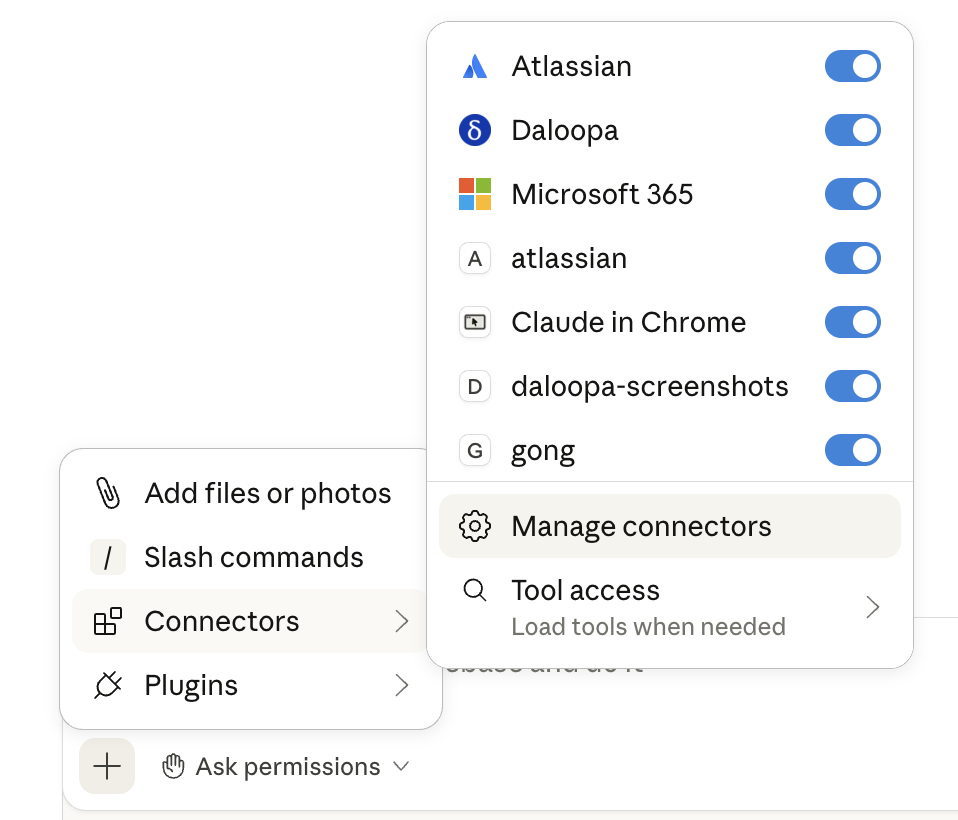
Click on the + icon on the left of the input prompt and hit Manage connectors:
Click on the + icon in the top center of the screen and hit Browse connectors
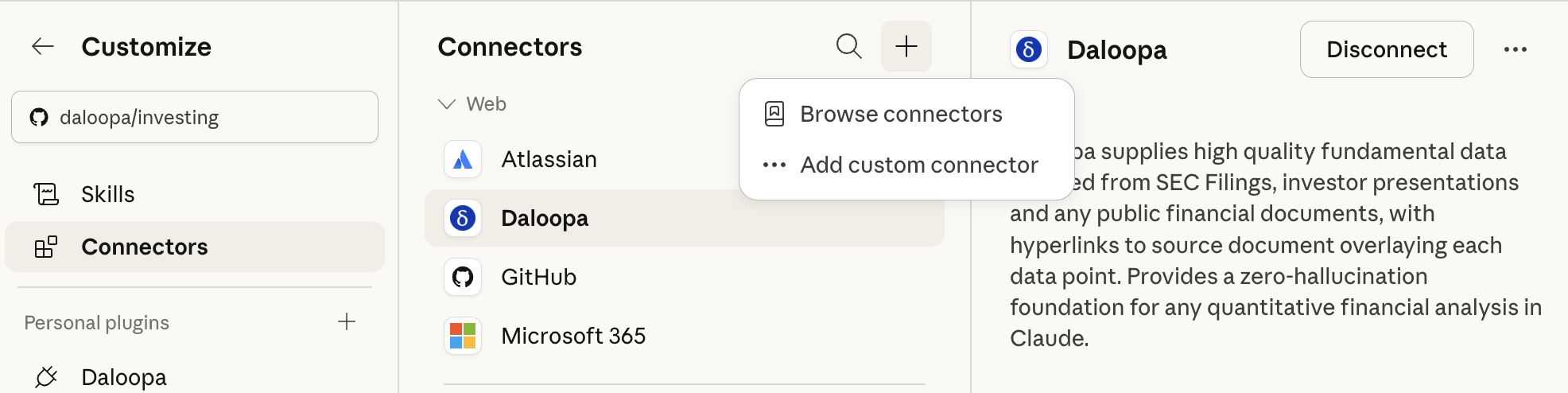
Search Daloopa, and click on it.
Click Connect.
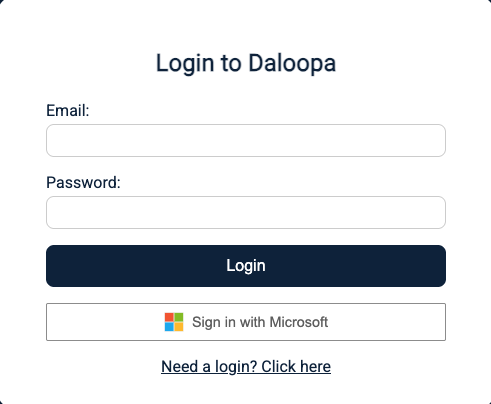
You'll be redirected to the Daloopa MCP Login Page. Enter your Daloopa email and password. On success, you'll be redirected back to Claude with the connection established.
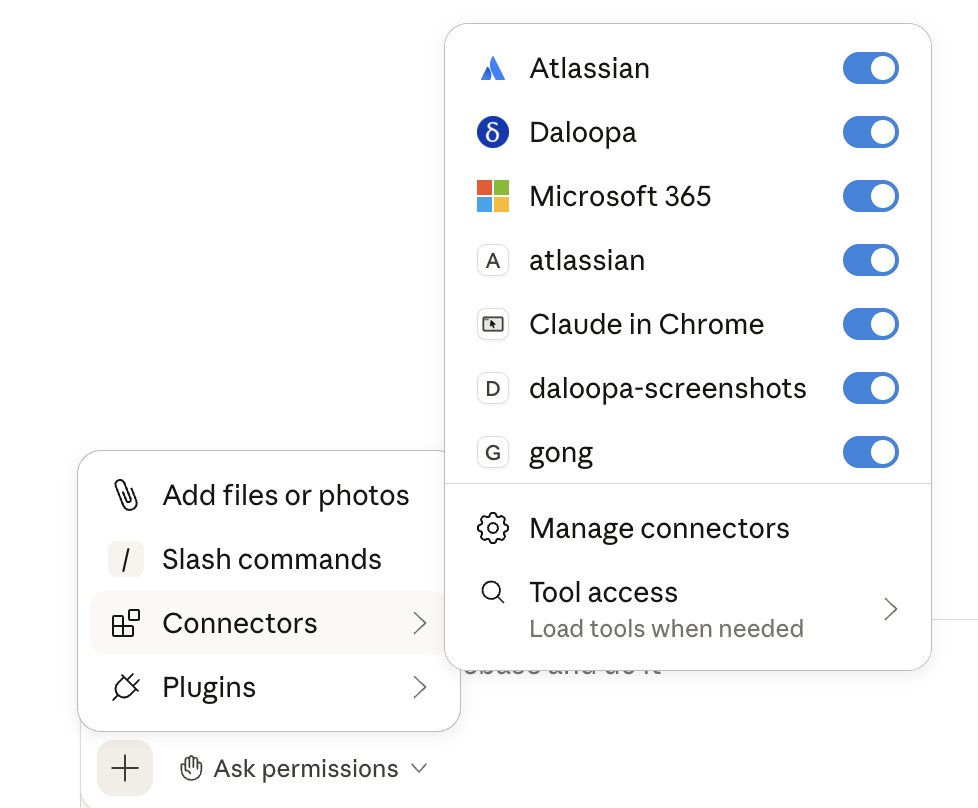
Verify that Daloopa is enabled:
Codex
Codex is OpenAI's agentic coding tool. Available as both a CLI and a desktop app.
CLI setup:
Using OAuth:
codex mcp add daloopa --url https://mcp.daloopa.com/server/mcp
codex mcp login daloopa
Using a bearer token:
export DALOOPA_MCP_TOKEN="YOUR_DALOOPA_MCP_TOKEN"
codex mcp add daloopa --url https://mcp.daloopa.com/server/mcp \
  --bearer-token-env-var DALOOPA_MCP_TOKEN
Verify: Run codex mcp list to confirm daloopa is listed.
Desktop app: MCP servers configured in the CLI are available in the Codex desktop app automatically.
Cursor
Add to your Cursor MCP config (~/.cursor/mcp.json for global, or .cursor/mcp.json per project):
{
  "mcpServers": {
    "daloopa": {
      "url": "https://mcp.daloopa.com/server/mcp"
    }
  }
}
With authentication:
{
  "mcpServers": {
    "daloopa": {
      "url": "https://mcp.daloopa.com/server/mcp",
      "headers": {
        "Authorization": "Bearer YOUR_DALOOPA_MCP_TOKEN"
      }
    }
  }
}
VS Code + Copilot
Add to .vscode/mcp.json in your workspace (requires VS Code 1.101+ with GitHub Copilot):
{
  "servers": {
    "daloopa": {
      "type": "http",
      "url": "https://mcp.daloopa.com/server/mcp"
    }
  }
}Windsurf
Add to your Windsurf MCP config (~/.codeium/windsurf/mcp_config.json):
{
  "mcpServers": {
    "daloopa": {
      "serverUrl": "https://mcp.daloopa.com/server/mcp"
    }
  }
}Anthropic API
Integrate Daloopa into your own applications using the Anthropic API. Requires an Anthropic API key and a Daloopa bearer token.
from anthropic import Anthropic

client = Anthropic(api_key="YOUR_ANTHROPIC_API_KEY")

response = client.beta.messages.create(
    model="claude-sonnet-4-5-20250929",
    max_tokens=2048,
    messages=[],  # Add your messages here
    mcp_servers=[
        {
            "type": "url",
            "url": "https://mcp.daloopa.com/server/mcp",
            "name": "daloopa",
            "authorization_token": "YOUR_DALOOPA_MCP_TOKEN",
        }
    ],
    tools=[
        {
            "type": "mcp_toolset",
            "mcp_server_name": "daloopa",
            "default_config": {"enabled": False},
            "configs": {
              "discover_companies": {"enabled": True},
  						"discover_company_series": {"enabled": True},
              "discover_company_documents": {"enabled": True},
              "get_company_fundamentals": {"enabled": True},
              "get_document_content": {"enabled": True},
              "get_stock_prices": {"enabled": True},
              "search_documents": {"enabled": True},
            },
        }
    ],
    betas=["mcp-client-2025-11-20"],
)
OpenAI API
Integrate Daloopa using the OpenAI Responses API. Requires an OpenAI API key and a Daloopa bearer token.
from openai import OpenAI

client = OpenAI(api_key="YOUR_OPENAI_API_KEY")

response = client.responses.create(
    model="gpt-5.4",
    input=[],  # Add your messages here
    tools=[
        {
            "type": "mcp",
            "server_label": "Daloopa",
            "server_url": "https://mcp.daloopa.com/server/mcp",
            "headers": {
                "Authorization": "Bearer YOUR_DALOOPA_MCP_TOKEN"
            },
            "allowed_tools": [
              "discover_companies",
              "discover_company_series",
              "discover_company_documents",
              "get_company_fundamentals",
              "get_document_content",
              "get_stock_prices",
              "search_documents"
            ],
            "require_approval": "never"
        }
    ],
)
Feedback and Support
If you have any feedback, suggestions, or questions, please contact us.
Updated 5 days ago