
Installing & updating the Add-In
Introduction
The Daloopa Excel Add-In brings Daloopa's data into Excel, so you can build, update, and audit financial models without leaving the workbook. Once a model is connected, updating it with the latest actuals takes a few clicks — no manual entry or copy-paste from filings.
You install it from the official Microsoft add-in store, either on your own or through your Microsoft 365 administrator. There's no separate program to download, and it updates itself once installed.
On this page
- Installing the Add-In
- Updating the Add-In
Installing the Add-In
For individual users
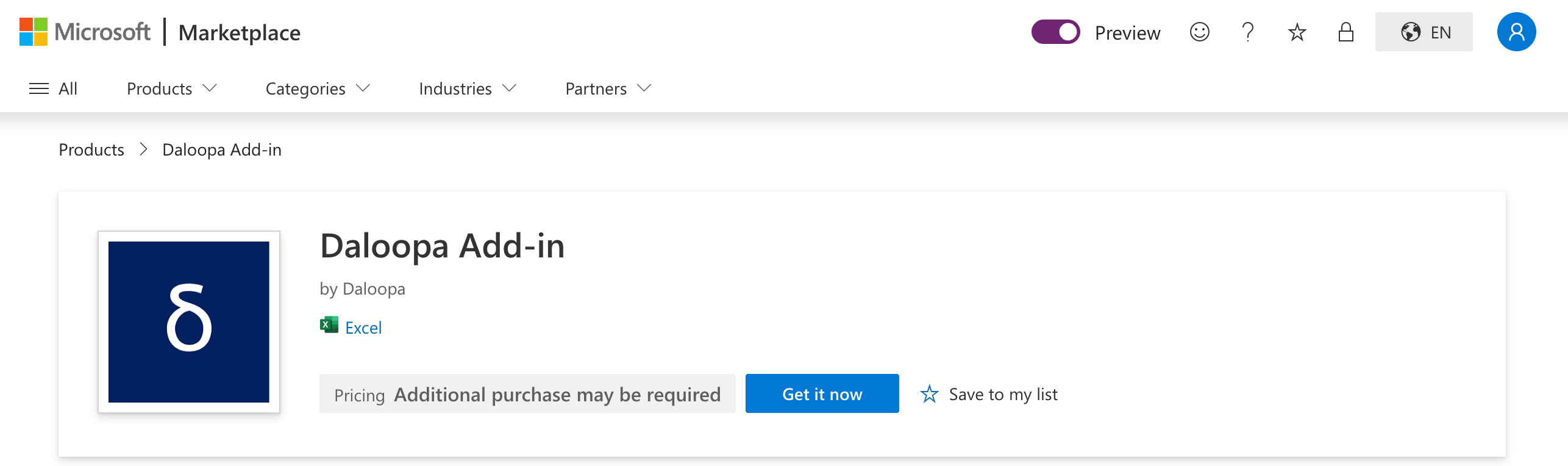
- Open the Daloopa Add-in on Microsoft AppSource.
- Click Get it now and complete the prompts to add it to your Microsoft account.
- In Excel (Windows, Mac, or Web), open a workbook and go to Home > Add-ins or Insert > Get Add-ins.
- Search for "Daloopa Add-in", select it, and choose Add if it isn't already pinned.
- Launch the add-in from the ribbon and sign in with your Daloopa credentials.
For Microsoft 365 administrators
Before you beginIf your organization previously deployed a custom (non-AppSource) version of the Daloopa add-in, remove it first:
- Sign in to the Microsoft 365 admin center as a Global Administrator or Apps Administrator.
- Go to Settings > Integrated apps.
- Locate the custom Daloopa add-in — it appears under "Custom apps" or as a manually uploaded app.
- Select it, choose Remove app, and confirm. This removes only the custom deployment and doesn't affect any store-installed version.
To roll out the Daloopa Add-in across your organization:
- Go to the Microsoft 365 admin center.
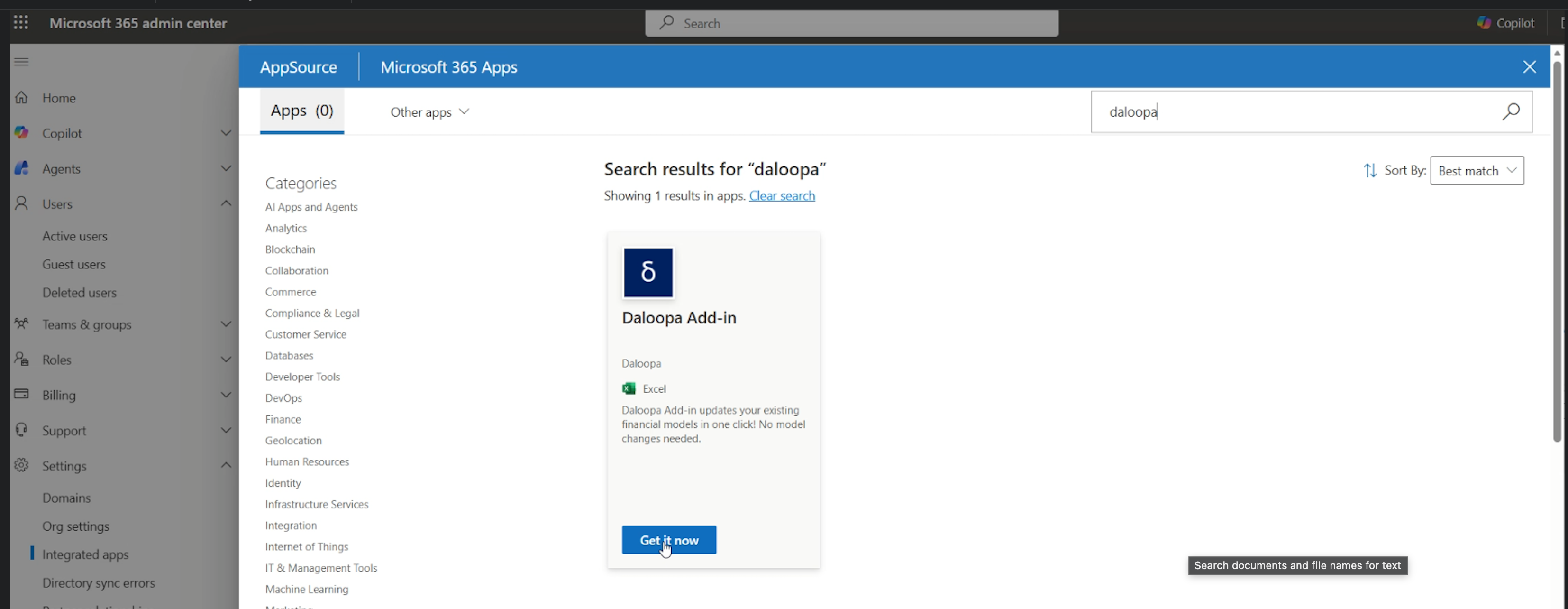
- Navigate to Settings > Integrated apps > Add-ins.
- Search for "Daloopa Add-in" in Microsoft AppSource and select it.
- Choose how to deploy it (entire organization, specific groups, or individual users) and complete the deployment wizard.
For Microsoft's own walkthrough, share Deploy add-ins in the Microsoft 365 admin center with your IT team.
Once deployed, each user opens Excel, goes to Home > Add-ins (Windows and web) or Tools > Add-ins (Mac), adds the Daloopa Add-in to the ribbon if needed, and signs in.
Updating the Add-In
If you installed the add-in from the Microsoft Add-In Store (AppSource), it updates automatically — no action needed.
If you installed it another way, you may be on an outdated version and missing recent changes. To update:
- Ask your IT team to redeploy the Daloopa add-in through your organization's admin-managed apps (e.g., Microsoft 365 Integrated Apps).
- Or reach out to your Daloopa contact — your Customer Success representative can help coordinate the update.
Troubleshooting
Clearing the add-in cache
Excel stores a local copy of web add-ins to help them load faster. Sometimes that copy goes stale, so Excel keeps showing an older version of the Daloopa Add-in even after it has updated. Clearing the cache makes Excel download a fresh copy.
Try this if:
- The add-in pane is blank, stuck loading, or shows an error when it opens.
- You don't see features or fixes that have already been released.
- The add-in behaves differently on your machine than it does for your colleagues.
Windows onlyThese steps use the Trust Center in Excel for Windows. On Excel for the web, clearing your browser cache does the same thing. On Mac, see Microsoft's guide to clearing the Office cache.
-
In Excel, go to File > Options.
[Screenshot: File > Options]
-
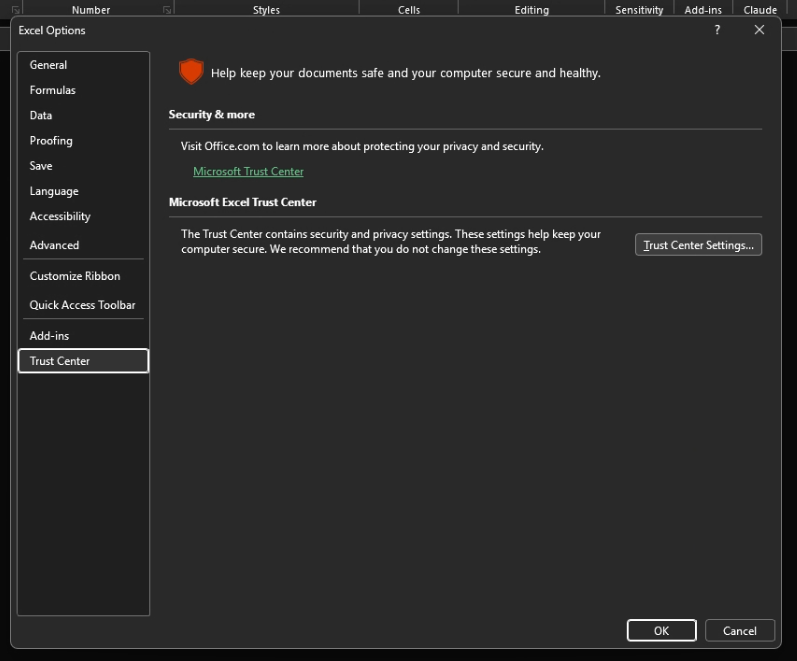
Select Trust Center, then click Trust Center Settings….
-
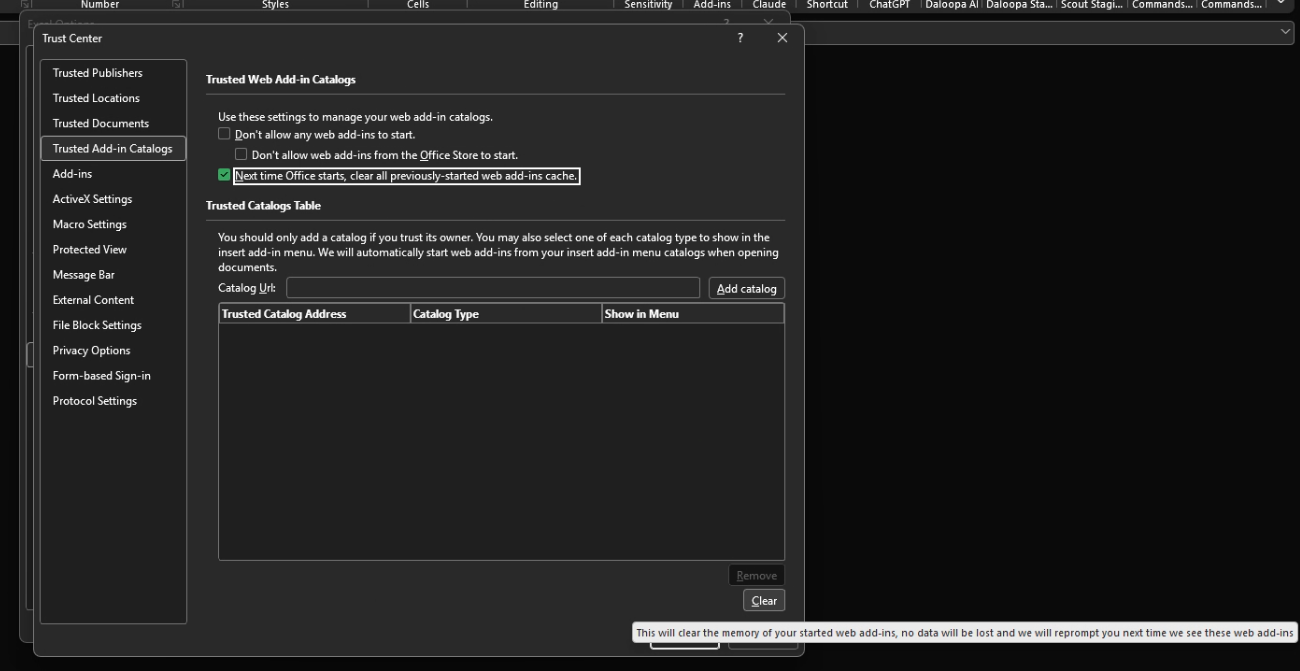
Select Trusted Add-in Catalogs.
-
Check Next time Office starts, clear all previously-started web add-ins cache.
-
Click Clear to also force clear the cached data.
-
Click OK to close Trust Center, then OK again to close Excel Options.
-
Close every open Excel window. If Word, PowerPoint, or Outlook are open, close those as well, since the cache is shared across Office apps.
-
Reopen Excel and launch the Daloopa Add-in from the ribbon. You may need to sign in again.
If the issue continues after clearing the cache, contact us or reach out to your Customer Success representative.
Updated 4 days ago