
Scout
Scout is an Excel-native AI assistant for financial modeling, powered by Daloopa data.
It turns plain-language commands into financial models in Excel. Use Scout to build new models, update existing files after earnings, and work with Daloopa data already in your workbook.
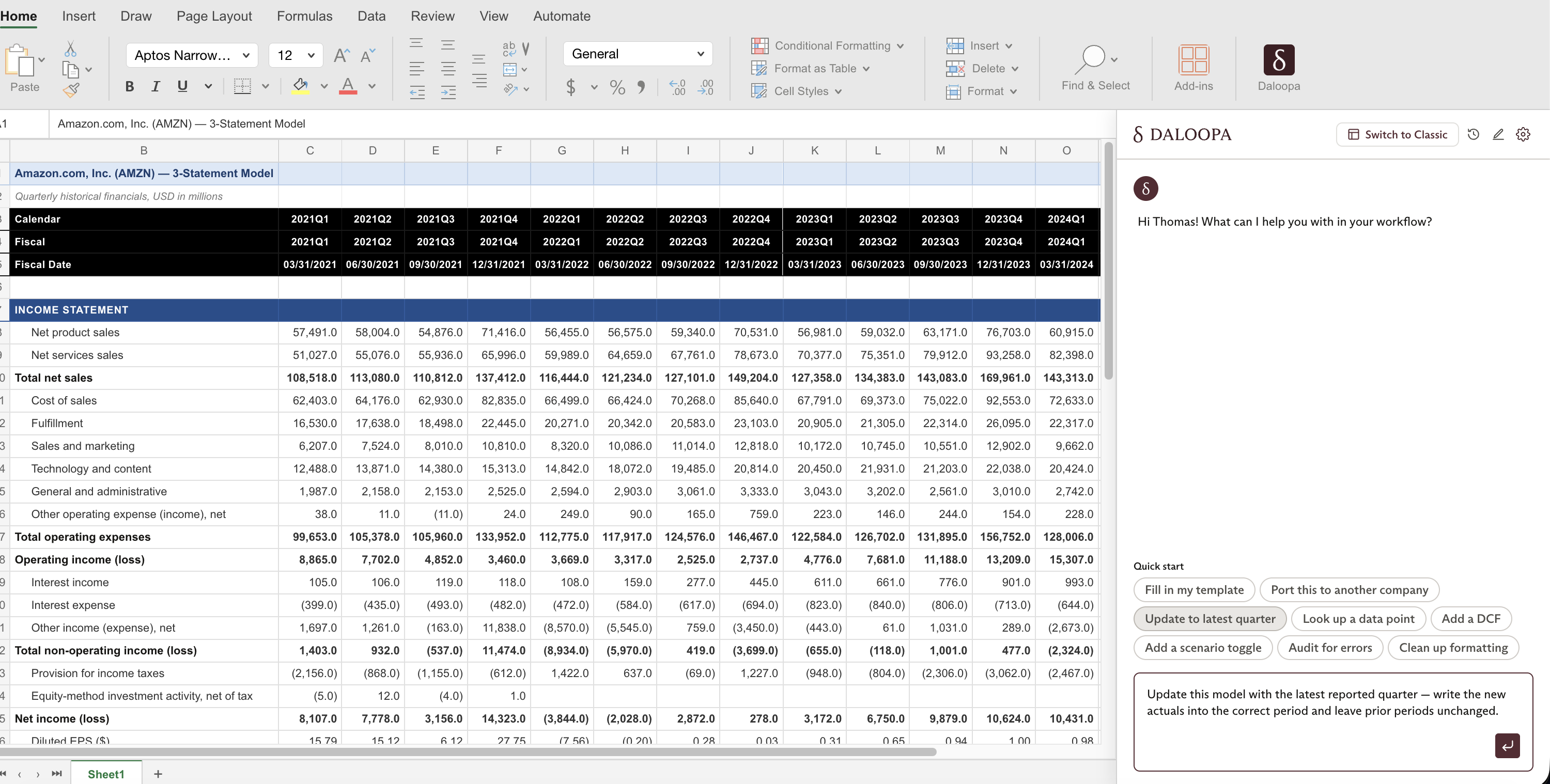
What it's for
Scout does two things well today:
- Build: Create a model from a blank sheet, build into your own template, or adapt an existing model to a new ticker.
- Update: Roll a newly reported quarter into a model you already have.
This covers single-company models, multi-tab models with a separate Daloopa data tab, industry and comps sheets across several tickers, and questions about data already in your workbook.
Getting access
If you have not installed the Daloopa Excel Add-In yet, start with Installing & Updating the Add-In.
Launch Scout with the Switch to Scout button in the upper-right corner of the add-in’s home screen.
- If Scout is included in your Daloopa subscription plan, you can begin sending prompts immediately.
- If Scout is not included in your plan, the prompt box is disabled. Contact [email protected] to explore access options.
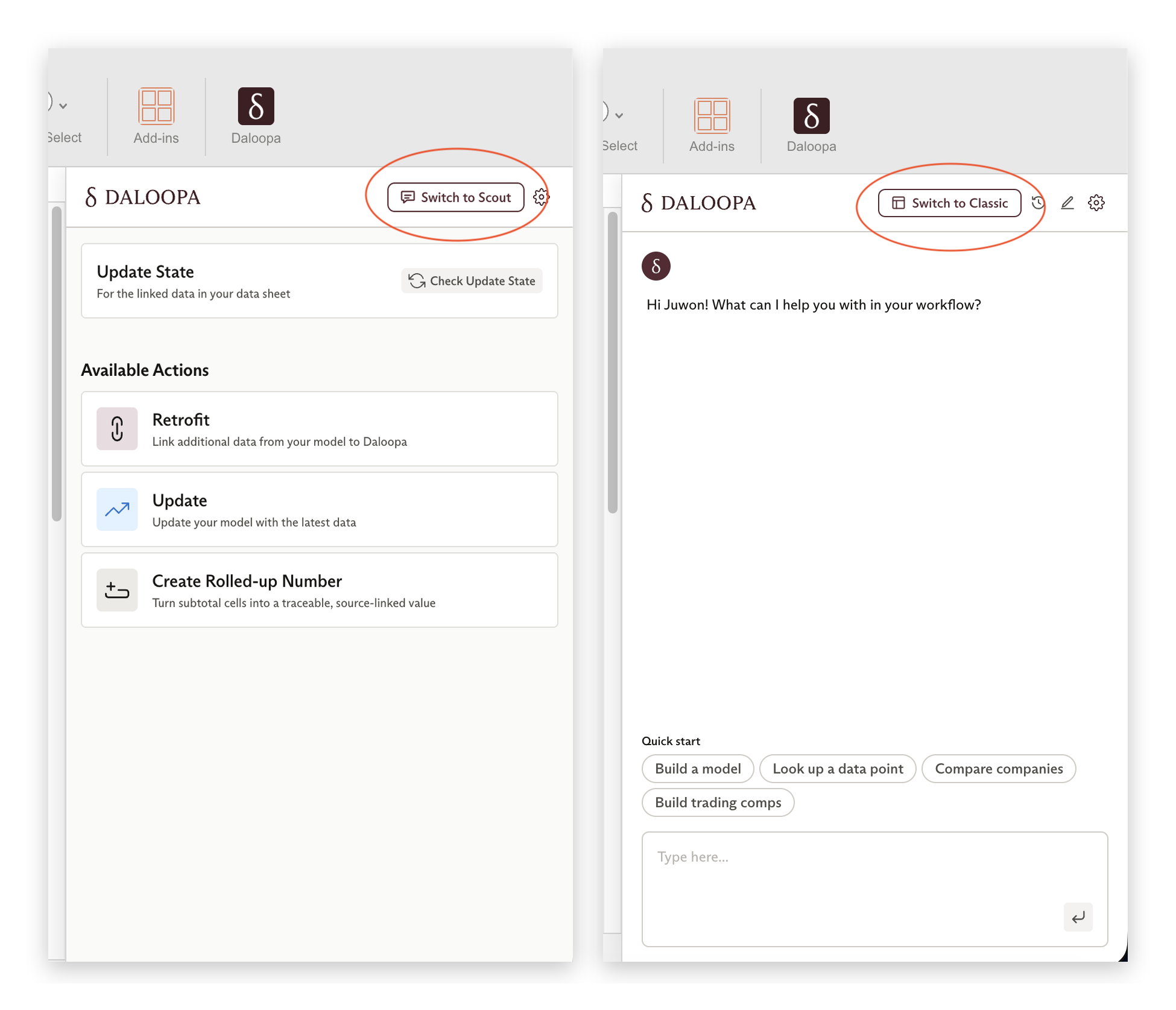
Classic (left) and Scout (right) panels in Daloopa's Excel add-in
Scout and Classic
The add-in has two sides:
- Scout builds new models and analyses.
- Classic is where Retrofit, Update, and Create Rolled-Up Number live.
You can switch between them from the home screen. They can't run at once, so the switch is disabled while Scout is working.
How it works
You do not need to choose a mode before you start. Scout reads your request and decides how to handle it:
- Anything substantial gets a plan first. Scout writes up what it intends to do. You read it, change it, or approve it. Nothing is written to your workbook until you approve.
- Simple requests just run. One value into one cell, or a small edit.
- Questions get answered in chat, with nothing written at all.
While Scout is working, the active sheet is locked and a banner shows, so its edits and yours can't collide. Revert undoes Scout's last action.
How long it takes
Scout takes time to work. Keep Excel open while it runs, and stay nearby so you can approve the plan before a substantial request starts.
| Request | Typical time |
|---|---|
| A question answered in chat | Under 10 seconds |
| A step that writes to the sheet | Around 2 minutes, though it varies a lot |
| A long continuation of an existing build | 10 minutes or more |
| A full three-statement model | 70 minutes to a bit over 2 hours in our runs |
Most people start a long build, then work on something else while Scout runs. You can run more than one Scout session at a time, and smaller requests finish sooner.
Chat history and global instructions
Two Scout settings are useful across sessions:
- Chat history:
- Open the three-dot menu in the Scout panel and select Chat history to browse, resume, delete, or search past conversations.
- Conversations are stored in your browser profile. They don't carry over to another machine and are removed if you clear browser data.
- Global instructions:
- Open the three-dot menu and select Settings to add Global instructions
- These include default directions Scout should follow across sessions, such as formatting, units, colors, layout, and naming conventions.
Restated numbers
Scout uses as-reported figures unless you ask for restated ones. Say so explicitly in your prompt and it will use the restated disclosure instead.
Scout won't rework a model on its own when a company changes the shape of its reporting, such as moving a segment, renaming a line, or re-cutting history. Ask and Scout will recast the affected periods, but it won't do it unprompted.
Data
Scout uses Daloopa data only. It does not use external connectors or web access.
Updated 2 months ago