
Update
Update refreshes your model with the latest available Daloopa data, without overwriting existing numbers.
For new, empty periods, Update adds Daloopa values and source links. For periods that already contain values, Update adds source links only and leaves your numbers unchanged.
Updating a model
For most models, run Update with Also update unlinked data points enabled. Daloopa connects your numbers to its data in the background, so you don't need to link the model first. This is the recommended path, including for models you're still building.
You can also Retrofit first, then run Update. This works well for structured models you keep fully connected and refresh each quarter, but it's optional.
Workflow
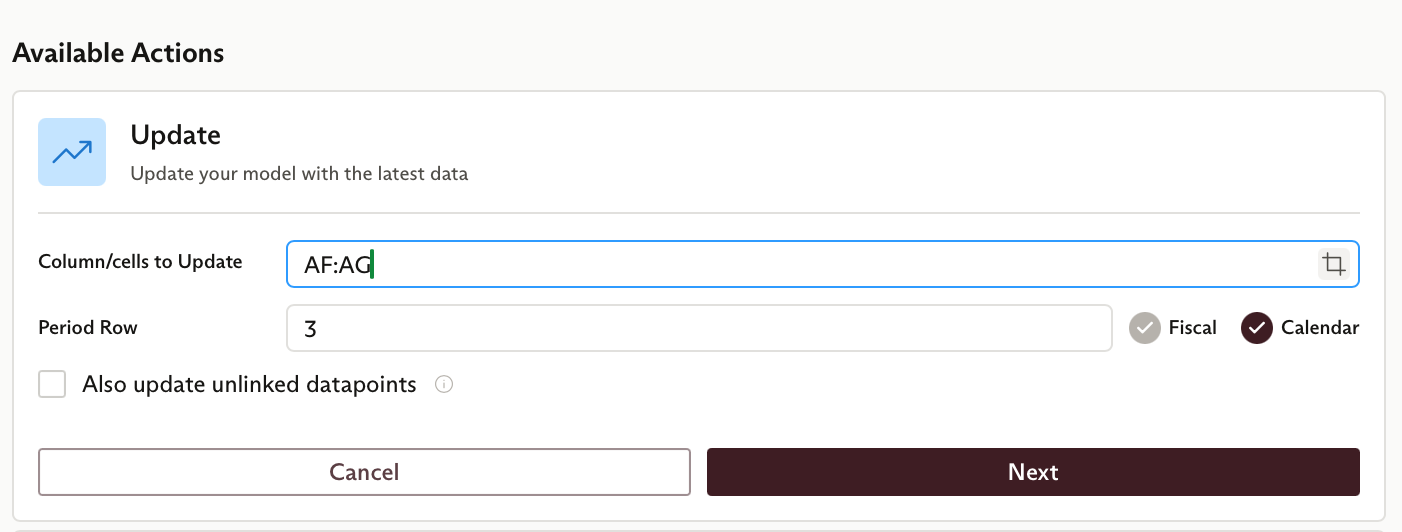
Step 1: Inputs
- Columns / Cells to Update. The range to update. Type it directly (for example,
BC34orC:H), or click the range selector button, then click or drag in the sheet. Click the button again to turn selection off, since a stray click can otherwise overwrite the range. - Period Row. The row that holds your period values (for example,
1,2). Set whether they're Fiscal or Calendar. - Also Update Unlinked Data Points (optional). Connects your numbers to Daloopa's data automatically, so you don't need to link the model first. Turning it on adds two fields:
- Company. Search by name or ticker.
- Row Header. The column that holds your row labels (the range selector works here too).
Step 2: Pending items (conditional)
This step appears only when Also update unlinked data points is enabled, and only when a data point needs a manual match. Otherwise you skip to Step 3.
Daloopa surfaces any value it couldn't match. For each one:
- Click Review to confirm a match.
- Or click Continue Update to skip the unresolved items and keep going.
Step 3: Update summary
When the update finishes, Daloopa returns to the Home screen with a summary.
Always shown:
- The number of cells updated successfully.
Shown when relevant:
- Newly Disclosed Data. Line items the company reported for the first time this period. Review them, then copy them in as new rows, download the list as a table, or open it in a new tab.
- Suggestions for Missing Items. Data points Daloopa holds that don't appear in your model, listed by cell (for example,
E15,E23). For each one:- Click the cell reference to jump to it.
- Click Review to open the Suggestions page, which shows your sheet context next to candidate Daloopa line items.
- Select the right one and click Apply. Daloopa fills the cell with the value and a hyperlink, then moves to the next.
- YTD / Quarterized Conversion. Shown when period-type conversion is available for any updated values.
Optional follow-up actions:
- Copy Formulas from Previous Period. Copies the previous period's formulas into the updated column.
- Revert Highlight Colors. Updated cells turn green when the update finishes. Use this to clear the highlights and restore the sheet's original colors.
Updated 4 months ago