
Using the Excel Add-In
Open the add-in from the Excel ribbon and sign in to land on the Home screen.
Home Screen
The Home screen is the Add-In's landing view. It gives a quick overview of your data sheet and its update status, and it's where you monitor changes, take action, and manage a model without leaving Excel.

Available Actions
The Available Actions section on Home lists what the add-in can do with your current data sheet: Retrofit, Update, and Create Rolled-Up Number. Each has its own section in this documentation.
You can also start these actions in a cell context menu straight from the sheet:
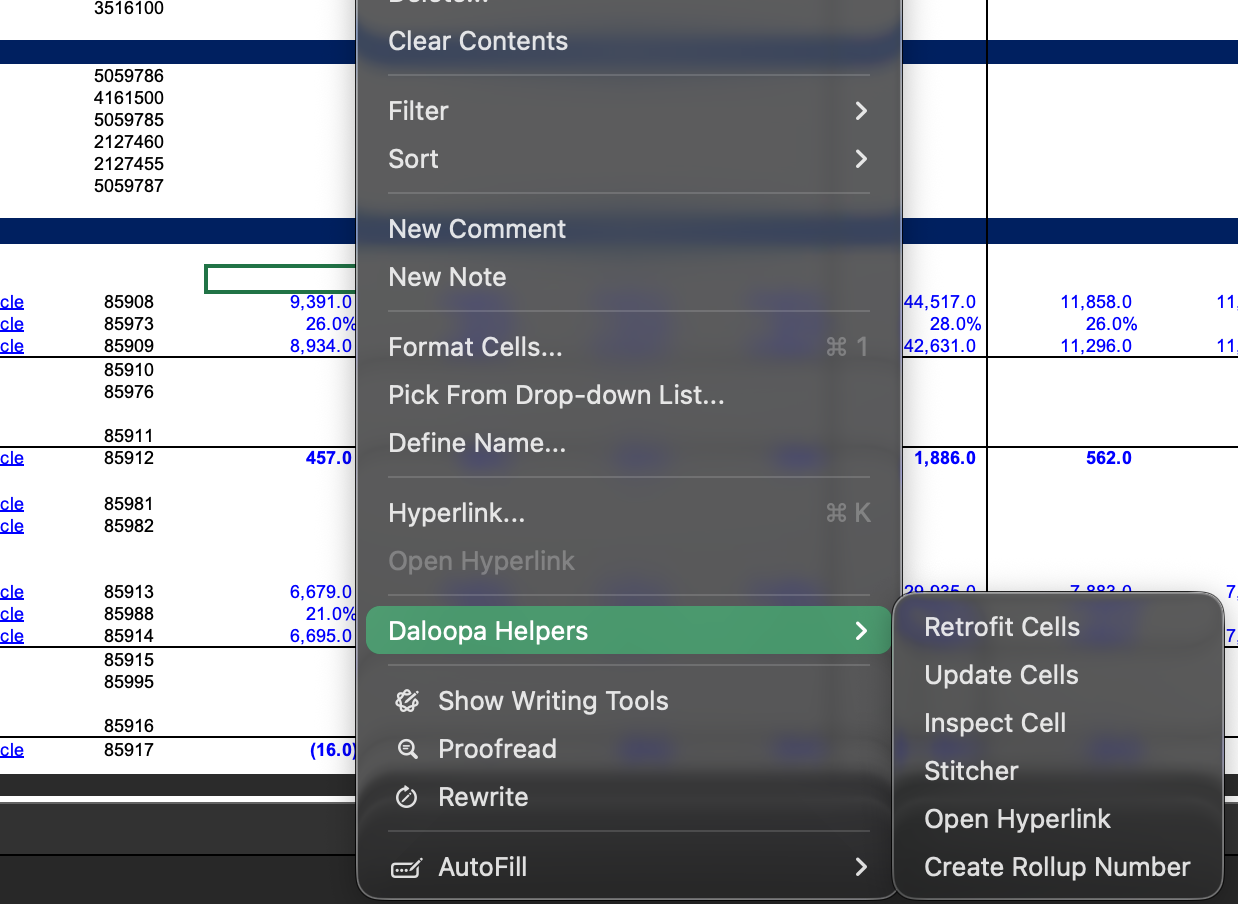
Right-click a selected cell or range and choose a Daloopa Helper action from the context menu to skip manual range entry. Any remaining steps, such as confirming inputs or reviewing results, happen in the add-in panel.
Daloopa Plus onlyUpdate State, Progress Graph, and Dynamic Highlight require a Daloopa Plus plan. Contact your Customer Success representative to learn more.
Update State
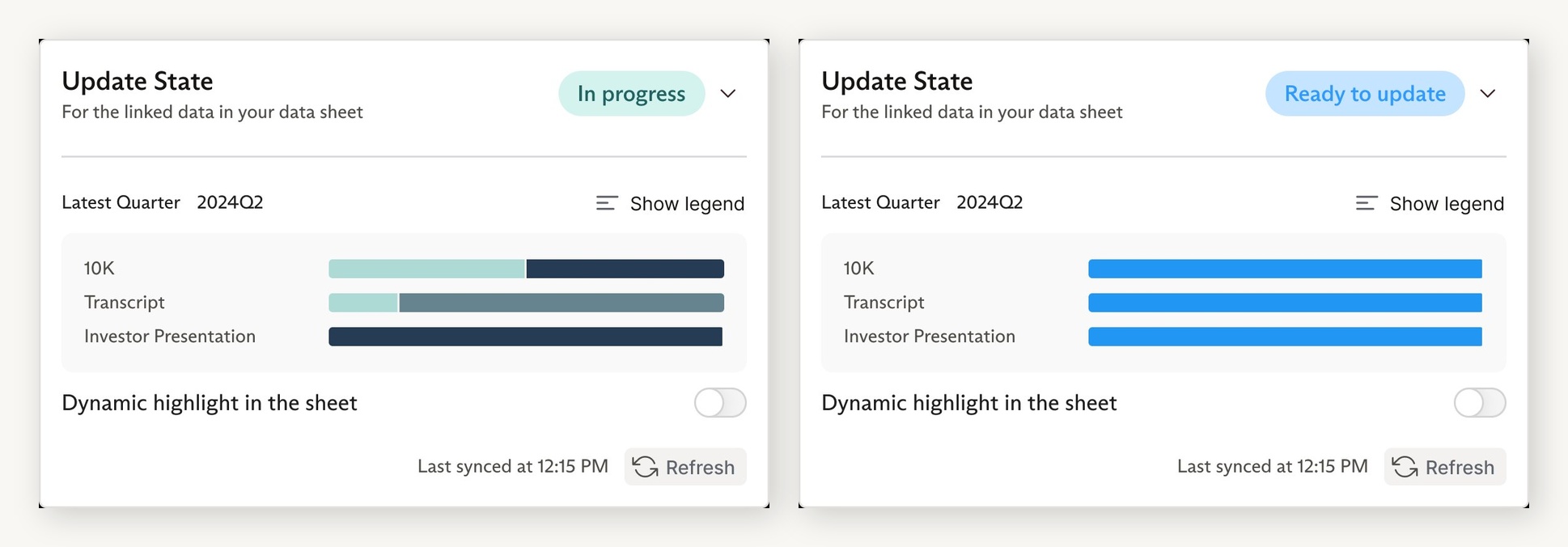
The Update State card shows whether your data sheet is current and flags when new data is available, so you know when to update your model.
Status labels
- No Pending Updates: The data sheet is current, with no new updates available.
- Update in Progress: Daloopa is processing new data for this company.
- Ready for Update: All updates for the current earnings season are complete and ready to pull into your model.
- Update Complete: The update finished. This status shows briefly, then reverts to No Pending Updates.
Why don't I see the Update State card?
Update State stays hidden when the sheet is empty, when it has never been retrofitted, or when the selected period is invalid. To bring it back, run a Retrofit, or run an Update with unlinked data points enabled.
Progress Graph
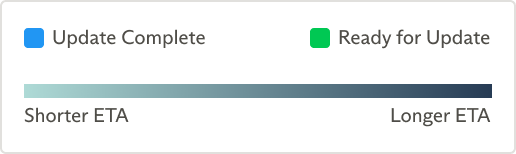
Expand the Update State card to see a color-coded view of update progress by data point and source, including estimated completion time.
-
Light teal — Daloopa is preparing the data, and it should arrive soon.
-
Dark indigo — Daloopa is preparing the data, and completion will take longer.
-
Green — The data is ready to update.
-
Blue — This data is already in your sheet.
Dynamic Highlight
The Dynamic Highlight in Sheet toggle applies the progress-graph colors to the matching cells in your Excel sheet, so the cells that are ready, pending, or already updated stand out at a glance. Turn the toggle off to remove the highlights.
Note: This toggle appears only when an update is available for the model, or while an update is in progress.
Updated 4 months ago