
Building a model with Scout
Scout shows prebuilt prompt chips above the prompt box. The chips change based on the workbook you have open: a blank sheet gets different starting points than an existing model.
Select a chip to drop an editable prompt into the box, then adjust the company, periods, layout, and level of detail before sending.
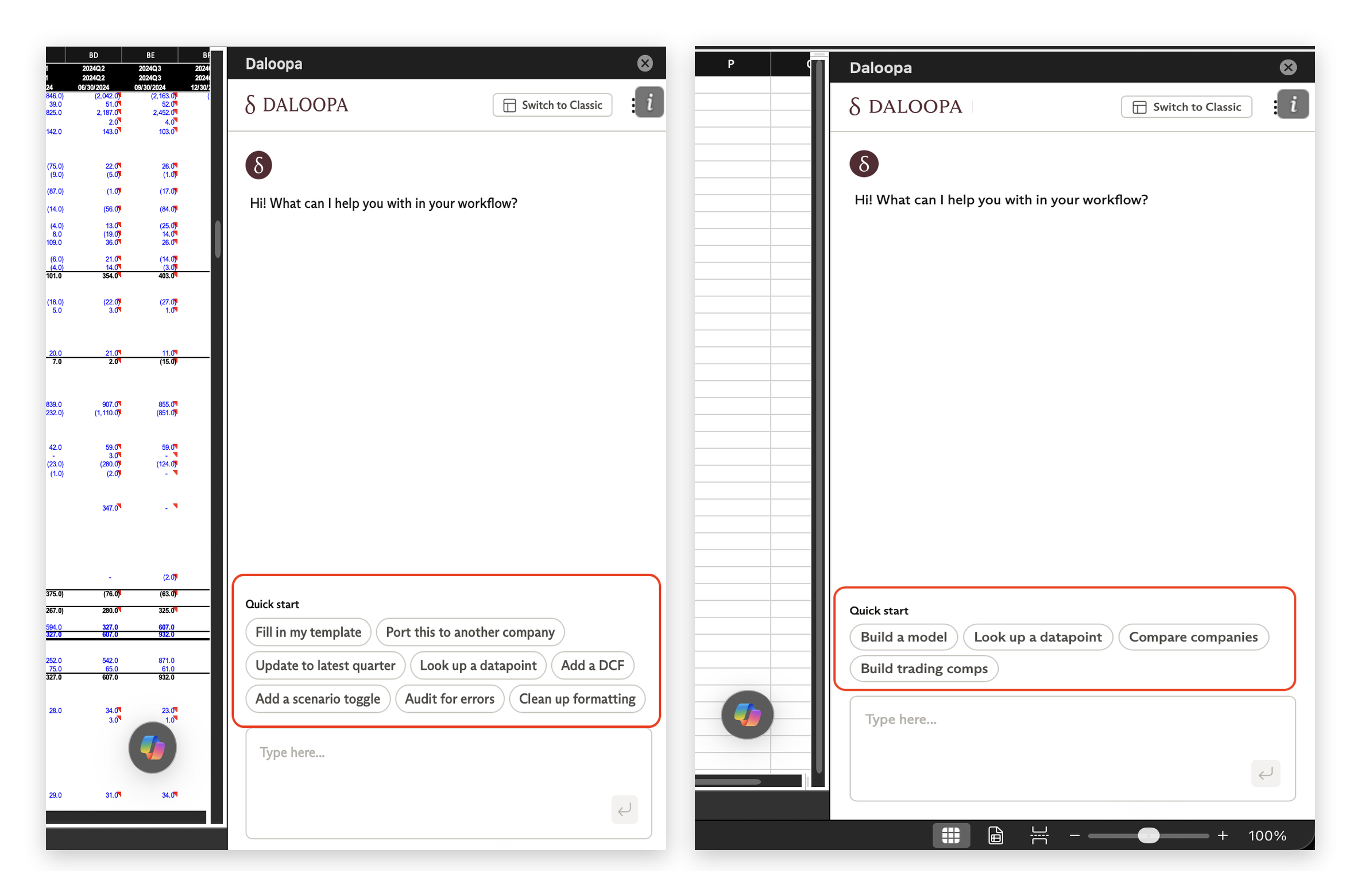
Prompt chips shown with an existing model (left) vs. a blank sheet (right)
| Chip | When it appears |
|---|---|
| Build a model | Blank sheet |
| Fill in my template | A model or template is open |
| Port this to another company | A model is open |
| Update to latest quarter | A model is open |
| Clean up formatting | A model is open |
| Look up a datapoint | Either |
Chips drop in placeholders like [TICKER] as ordinary text. Replace them before you send, or leave them and Scout will ask.
Prompt examples by workflow
The examples below show how to write or adjust prompts for the common workflows.
From a blank sheet
Build me an operating model for CRM covering the last 8 quarters and 3 fiscal years, with revenue by segment, gross margin, operating expenses by line, and operating margin.
After you send a prompt, Scout shows a plan before writing to the workbook. Review and approve the plan to confirm the period range, segments, and key outputs.
Into your own template
Fill the historical columns of this income statement template for PPG. Match my existing row labels, leave the forecast columns alone, and put hard values in, no formulas.
Two things make a difference here. Say what not to touch, and say whether you want hard values or formulas.
Ported to a new ticker
Build the same model as the 'MSFT' tab, but for ORCL, on a new tab. Keep the same row order and formatting. Where Oracle discloses different segments, use Oracle's and tell me what changed.
That last clause matters. Two companies rarely disclose the same way, and asking Scout to report the differences gets you a list to check instead of a silent guess.
Industry and comps
Build an industry comparison for MSFT, GOOGL, AMZN and META. Last 8 quarters of capex, depreciation and amortisation, net PP&E, and total revenue, plus capex as a percentage of revenue for each.
Specify the layout if it matters. Scout can build a multi-ticker sheet, but will choose an arrangement unless you ask for companies down rows or across columns, one block per company or one block per metric.
More example in the prompt library.
What Scout does for you
Scout handles the mechanical work of building the model:
- Finds the right Daloopa series
- Writes values with a source link on each cell
- Matches fiscal periods across companies
- Keeps units and signs consistent
- Builds formulas and derived rows
- Formats the output
What to review
- The plan. Nothing gets written until you approve it.
- The output. Check that your subtotals foot, and that each column landed in the fiscal period you expected.
- Forecasts. Scout builds historicals by default. It will build forecast columns and driver rows if you ask, but the assumptions are yours.
A few practical notes
- Build somewhere safe. Use a new tab or a blank workbook rather than a live model. There are worksheet protection guards and a Revert, but a scratch tab saves the trouble.
- Start narrower than you think. Shorter period ranges and fewer line items finish faster and more reliably.
- Split big jobs. Data tab, then statements, then drivers usually works better than one long prompt. Long prompts on large models are where Scout is most likely to stall.
- If it stops, reply
continueorresumein the same conversation. If it stalls with no message, try again. - Ask for restated figures if you want them, and say so explicitly.
After the build
Cells Scout writes include Daloopa source links, so the model works like a retrofitted Daloopa model. As new data publishes, refresh it from Classic or have Scout roll in the next quarter.
Updated 2 months ago